I spent three hours last month cleaning a friend’s Samsung phone. He had tapped a “your phone is infected” pop-up, and within a day his battery was dying by noon. The fix wasn’t a magic app. It was a process.
If you’re searching for how to remove malware from Android, you need the same thing: a clear, step-by-step path that actually works.
This guide walks you through seven steps, from spotting the signs to running a free Android malware scan, based on real fixes that solved real problems.
So, How to Remove Malware From Android 2026?
First, Confirm It’s Actually Malware
Most “virus warnings” on Android are lies. A pop-up claiming your phone is hacked usually wants you to install something worse.
Read Also: How to Remove Screen Lock on Android: Easy Steps
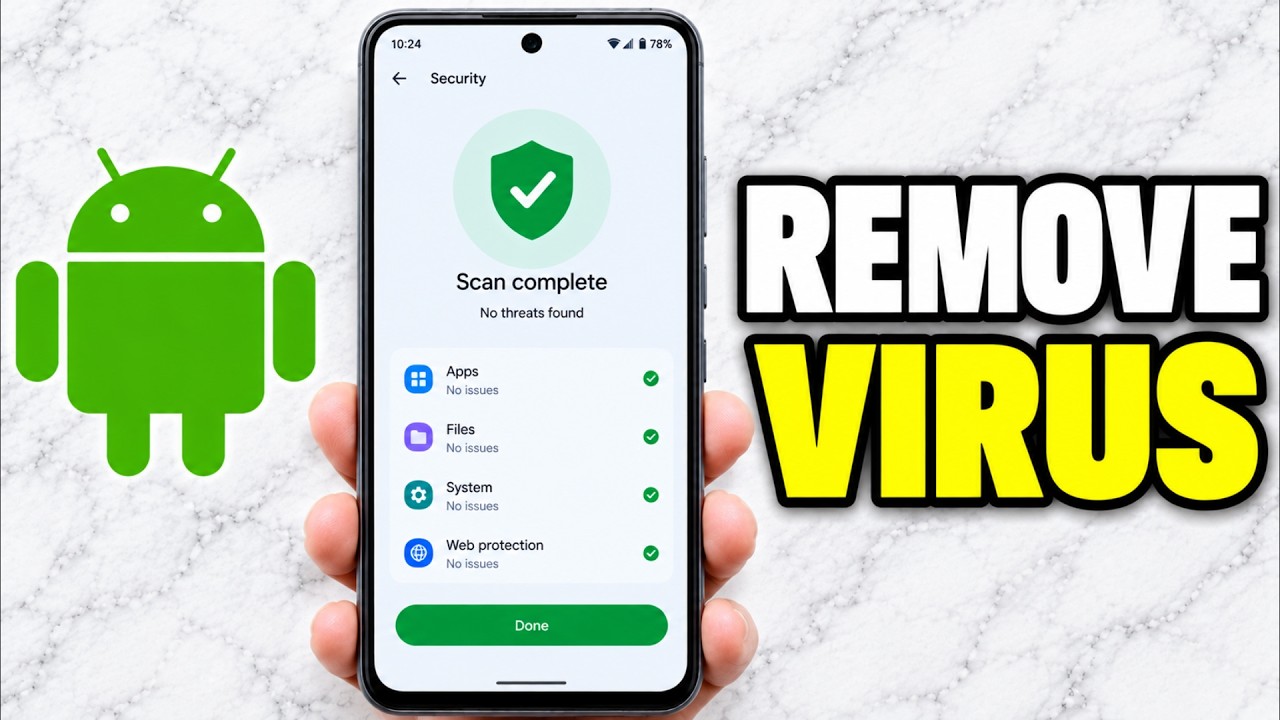
Real malware shows different signs. Your battery drains fast. Apps crash for no reason. You see apps you never installed. Your data usage spikes. Your phone runs hot when you’re not using it.
My friend’s giveaway was simpler. His phone kept opening Chrome tabs to gambling sites on its own. That’s adware, not a virus. Same family, different behavior.
Step 1: Cut the Connection
If something is actively misbehaving, stop it from talking to the internet.
Turn on Airplane Mode. Disconnect from Wi-Fi. A malicious app can’t send stolen data or download more payloads if it has no network.
This also protects you from a spoofed Wi-Fi network. If you see two identical “Cafe Guest” networks, one might be fake, designed to drop malware onto your device.
Step 2: Boot Into Safe Mode (The Step Most People Skip)
Safe Mode disables every third-party app you installed. If your phone behaves normally in Safe Mode, you know the problem is an app, not the system.
Here’s how to get there on most phones: press and hold the power button. Then touch and hold “Power off” or “Restart” until a “Reboot to safe mode” prompt appears. Tap it.
Samsung phones work slightly differently. Hold the side and volume-down buttons until the power menu shows. Then long-press “Power off” until the Safe Mode prompt appears.
You’ll see “Safe mode” at the bottom of your screen when it boots.
Step 3: Hunt Down the Culprit
Stay in Safe Mode. Go to Settings > Apps > See all apps. Scroll slowly. Look for three things:
You Must Also Like: How to Improve Google Play Store Keyword Ranking in 2026?
Blank icons. Some malware hides with no name and no icon.
Generic names. Apps called “Cleaner,” “Booster,” or “System Update” that you don’t remember installing.
Recent additions. Anything installed right before the problems started.
Tap the suspicious app. If “Uninstall” works, do it. If it’s grayed out, the app has locked itself in. Go to Step 4.
Step 4: Break the App’s Lock
Malware uses Device Administrator permissions to stop you from removing it. It can also use “Display over other apps” to hide the uninstall button.
Go to Settings > Security > Device admin apps. Find the suspicious app. Tap it. Select “Deactivate this device admin app”.
Then go back to Settings > Apps. Find the app again. Force stop it. Then uninstall it.
While you’re there, check Settings > Special app access. Look at “Display over other apps” and “Modify system settings.” Turn those off for any app that shouldn’t have them.
This was the step that finally worked on my friend’s phone. The malicious app had hidden its uninstall button behind the “display over other apps” permission.
Step 5: Run a Free Android Malware Scan
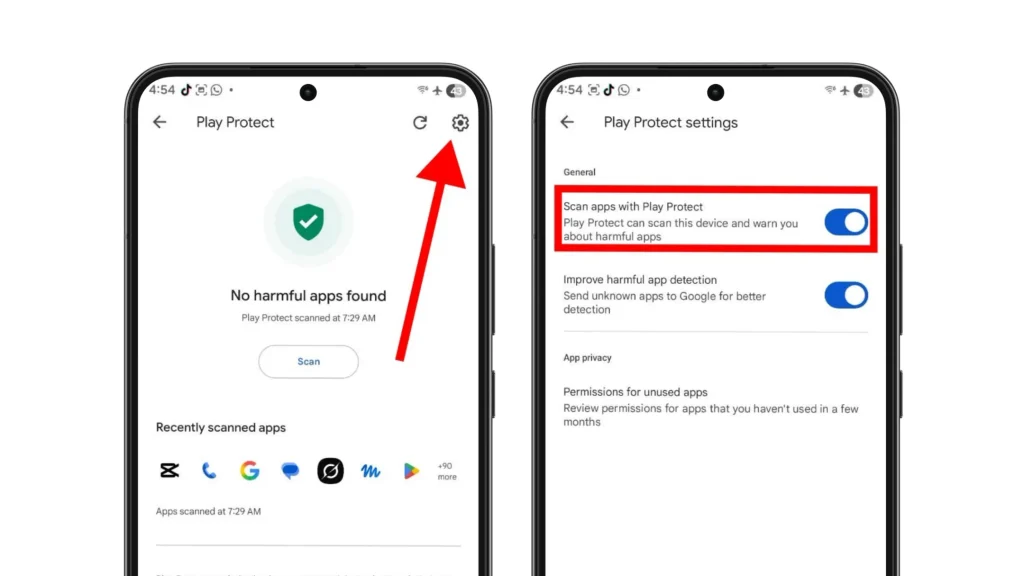
Google Play Protect is built into every Android phone. It’s free and it doesn’t nag you with ads. It won’t catch everything, but it’s a solid first scan. Open the Play Store. Tap your profile icon in the top right. Tap Play Protect. Tap Scan.
If you want a second opinion, install a reputable free scanner. Avira’s free tier scores perfectly on AV-Test and includes a real malware scanner without gutting the core protection. Bitdefender’s free version is also solid and lightweight.
One warning: avoid any “antivirus” app that you found through a pop-up ad. Fake cleaners are a common way to get malware on your phone in the first place.
Step 6: Update Everything
Malware exploits old software. Security patches close those holes.
Go to Settings > Software update and install anything available. Then open the Play Store, tap your profile icon, and update all your apps.
This sounds boring. Do it anyway. An outdated app is an open door.
Step 7: The Last Resort (And How to Do It Right)
If nothing works apps keep reinstalling themselves, or your phone still acts possessed in Safe Mode factory reset is your nuclear option.
Before you reset: Back up your photos and documents. Do not back up your apps. If the malware came bundled in an APK, restoring that backup puts the infection right back.
Then go to Settings > System > Reset > Factory Data Reset.
After the reset, install apps one at a time, only from the Play Store. Don’t restore everything at once. If the problem returns, you’ll know exactly which app brought it back.
What I Learned From My Friend’s Mess?
The app that infected his phone was a “free flashlight” he sideloaded from a random website. It requested access to his contacts and SMS. He didn’t think twice.
Two rules I follow now, and you should too: if an app isn’t on the Play Store, don’t install it. And if a free app asks for permissions that make no sense for its job, delete it.
Malware removal on Android isn’t complicated. Safe Mode, Device Admin settings, and a clean scan solve most cases. But prevention beats every step above. A free malware scan takes two minutes. Cleaning up a real infection takes an afternoon.