
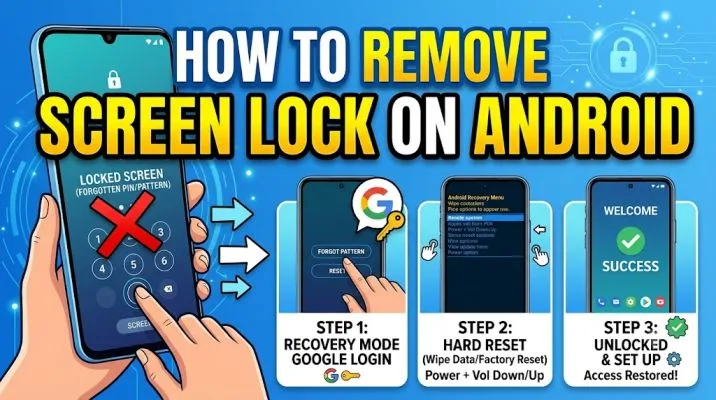
Removing the screen lock on an Android phone sounds simple. But the steps change based on your phone brand and Android version. I've done this on a Pixel, a Samsung, and a Xiaomi. Each one hides the setting in a different place.
The core idea stays the same: go to your android lock screen settings, confirm your current PIN or pattern, then choose "None." That removes the lock. Your phone opens with a swipe.
This guide walks through the exact steps for major brands. It also covers what happens when you forget your password and why turning off the lock screen is a real security trade-off.
What Happens When You Turn Off the Lock Screen?
Your phone stops asking for a PIN, pattern, or password. Anyone who picks it up can open it. They can read your messages, see your photos, and open your banking apps. That's the honest truth about this feature.
Read Also: Step By Step Guide How to Change Default Apps On Android?
Android will warn you about this. When you tap "None" or "Turn off password," a message pops up. It explains that your device will no longer be secure. It also notes that biometric unlock methods fingerprint and face get deleted too.
One thing people miss: Turning off the lock screen does not turn off your screen timeout. Your display still goes dark after a set time. You just don't need a code to wake it up.
How to Remove Screen Lock on Stock Android (Pixel, Motorola, Nokia)
Stock Android keeps things clean. Google's own Pixel phones follow this path.
Open Settings. Scroll to Security & privacy. Tap Device unlock. Then tap Screen lock.
Your phone asks for your current PIN, pattern, or password. Enter it. You'll see a list of lock options: None, Swipe, Pattern, PIN, Password.
Tap None. Confirm the warning. Your lock screen is gone.
The exact menu names shift a little between Android versions. On older builds, you might see Security instead of Security & privacy. The final result is the same.
How to Remove Screen Lock on Samsung Galaxy?
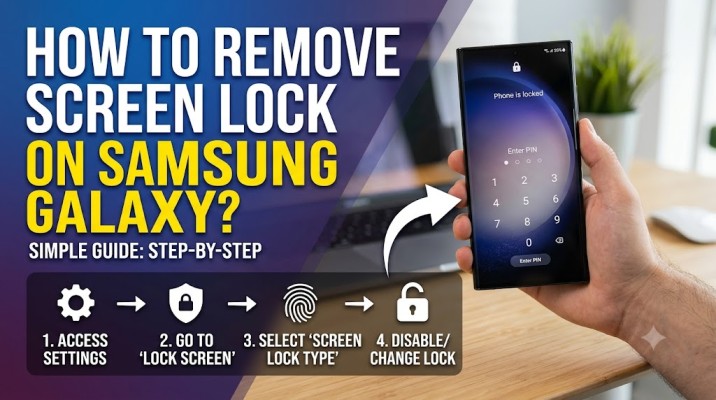
Samsung's One UI puts lock settings in a different spot. I found this out the hard way after switching from a Pixel. Open Settings. Tap Lock screen and AOD. Then tap Screen lock and biometrics.
You Must Also Like: How to Transfer Android Files to Mac Without Android File Transfer App?
Enter your current lock code. Tap None. Samsung will warn you that this deletes fingerprints and face data. Tap Delete to confirm.
Samsung-specific note: If you set up a pattern lock and forget it, Samsung says you'll need a factory reset to get back in. That's harsher than some other brands. So keep your PIN written down somewhere safe.
How to Remove Screen Lock on Xiaomi, Redmi, and POCO?
Xiaomi's MIUI and HyperOS bury the setting under a privacy menu.
Open Settings. Tap Security & privacy. Tap Device unlock. Tap Screen lock.
You'll enter your current password. Then pick None or Turn off password. The wording depends on your MIUI version.
Some Xiaomi phones add an extra confirmation step. They ask if you're sure. That's normal. Tap through it.
How to Remove Screen Lock on Realme, OPPO, and OnePlus?
These brands share similar software roots. Realme's official support page lays out the steps clearly.
For realme UI 5.0 and newer: Settings > Security & privacy > Device unlock > Screen lock > Enter password > Turn off password.
For realme UI 4.0 and 3.0: Settings > Security & privacy > Lock screen password > Enter password > Turn off password.
Older Realme versions use Fingerprint, face & password as the menu name. But the last step is identical.
OPPO and OnePlus follow nearly the same path. Look for Password & biometrics or Security in Settings.
What If You Forgot Your Password?
This is the part nobody wants to face. You want to turn off the lock screen, but you can't get past it. You don't know the PIN. You don't know the pattern.
Your options depend on your phone brand.
Samsung users have one good path left. If you linked a Samsung account, go to smartthingsfind.samsung.com on any browser. Sign in. Pick your phone. Tap Unlock. Enter your Samsung account password. The lock screen is removed remotely. Your data stays intact.
This only works if your phone has internet access and you didn't disable remote unlock in settings beforehand.
Everyone else faces a factory reset. If you can't get past the lock screen and you have no remote unlock option, you'll need to wipe the phone. That erases everything photos, apps, messages. You'll set it up like new afterward.
Recovery Mode is the standard way. Power off the phone. Hold the right button combo for your model (usually Volume Up + Power). Navigate to Wipe data/factory reset. Confirm. Reboot.
A word of caution about third-party unlocking tools. Some software claims to remove your lock screen without losing data. DroidKit, Aiseesoft, and similar tools exist.
Read the fine print. Most of them erase your data anyway. Some only work on very old Android versions. None are guaranteed. I wouldn't trust my main phone to them.
ADB Method: For Developers and Testers
If you're comfortable with command-line tools, ADB can disable the lock screen on devices you own. Enable USB debugging in Developer Options. Connect your phone to a computer. Open a terminal or PowerShell. Run:
adb shell locksettings set-disabled true
If your device still has a lock credential set, use:
adb shell locksettings clear --old YOUR_PIN_OR_PATTERN
This method suits testers who need to disable locks on multiple devices fast. It's not for regular users. It requires setup and carries risk if you type the wrong command.
Should You Actually Turn Off Your Lock Screen?
Turn it off if:
-
You use the phone only at home and never take it out
-
You're using it as a dedicated music player or smart home controller
-
You're a developer testing an app and constant unlocking slows you down
-
You have a disability that makes entering a PIN painful
Keep it on if:
-
You carry the phone in public
-
You have banking apps, work email, or personal photos on it
-
You ever leave it unattended
-
You'd feel sick if a stranger read your messages
The lock screen is the first line of defense. It's not perfect. Someone can still steal your phone and try to break in. But a basic PIN stops the casual snoop. It stops the person who finds your phone on a park bench. It buys you time to remote-wipe it.
A middle ground: Use Smart Lock. This feature keeps your phone unlocked in trusted places like your home Wi-Fi or when your smartwatch is connected. It locks again when you leave. You get convenience without full exposure.
FAQ: Android Lock Screen Settings
Can I remove the lock screen if I don't know my password?
Only if you have a Samsung account with remote unlock enabled. Otherwise, you'll need a factory reset that erases everything.
Does turning off the lock screen delete my fingerprints?
Yes. Android removes all biometric unlock data when you disable the screen lock.
Will my phone still lock after a timeout if I remove the screen lock?
The screen will still turn off after your timeout period. But it won't ask for a code when you wake it. It opens with a swipe or tap.
Can I turn the lock screen back on later?
Yes. Go back to the same setting and choose a new PIN, pattern, or password. You'll set it up fresh.
Is it safe to use third-party apps to remove the lock screen?
Most erase your data or only work on old phones. I wouldn't trust them on a main device.