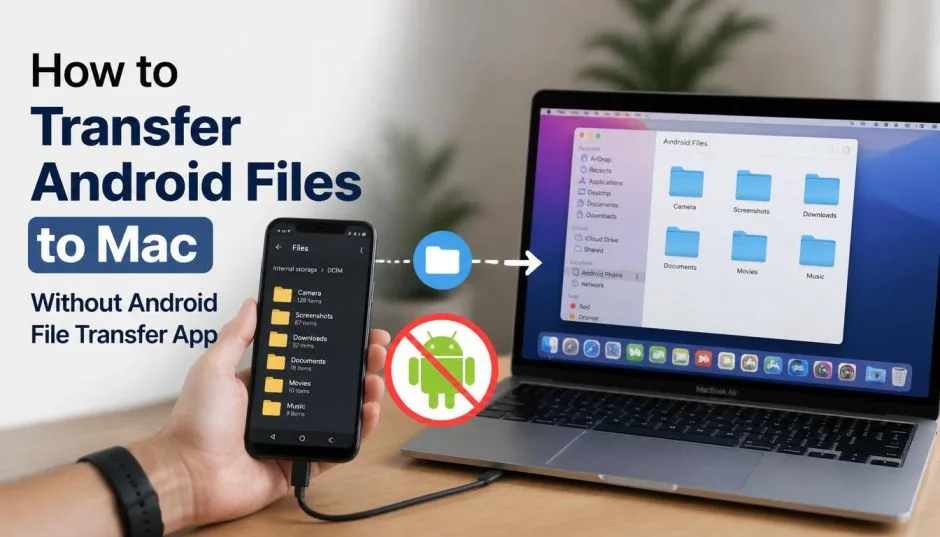
I have been there. You plug your Android phone into your Mac. Nothing happens. You download the official Android File Transfer app. It crashes. Or it does not recognize your device. Or it opens and closes randomly. It is frustrating.
I test Android phones for work. I write about them on a MacBook Air. The two platforms do not like each other. They never have. Google's official solution has been broken for years. Users have complained about it endlessly.
One person on Google's support forum said the app kept launching by itself after updating to Android 16. They could not stop it . Another person said the app has "long been known to function erratically".
That is not a real solution. That is a headache.
I have tried every workaround. I have tested USB cables. I have enabled USB debugging. I have uninstalled and reinstalled the app. I have restarted my Mac more times than I care to admit. Sometimes it works. Most times it does not. So I stopped using it. And I found better ways.
This guide is about how to transfer Android files to Mac without Android File Transfer. I will show you what I actually use. What works. What does not. And what is a waste of time.
Why Android File Transfer Fails So Often?
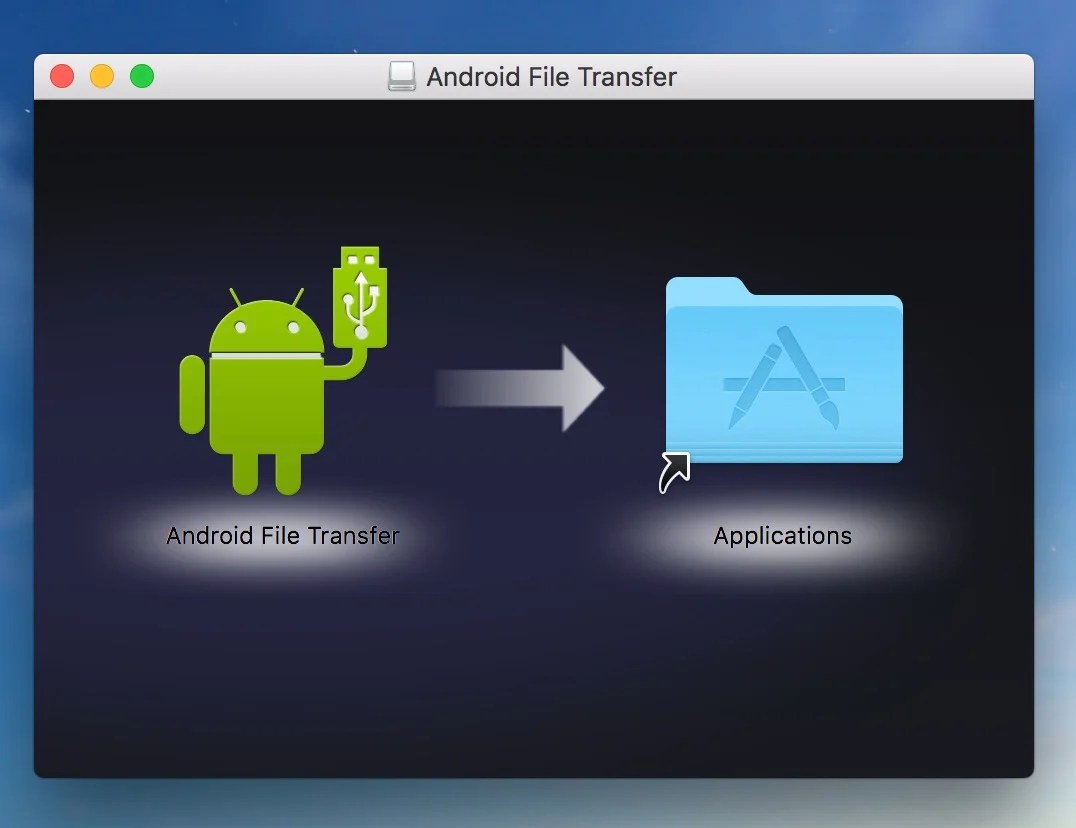
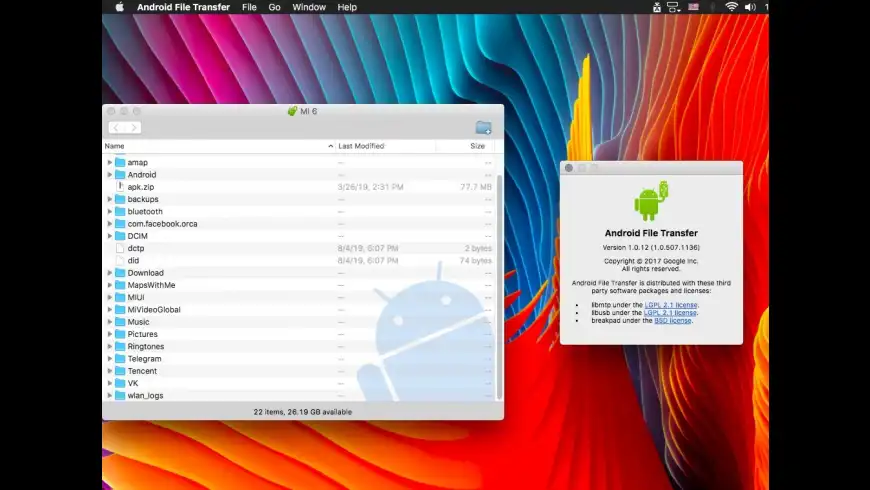
The Android File Transfer app is outdated. It has not been properly updated in years. Apple changed how macOS handles external devices. Google did not keep up.
Read Also: How to Find Which Android Apps Have Background Camera Access?
The app also conflicts with other software. If you have Samsung Smart Switch installed, it can block the connection. If you have Google Drive running in the background, it can interfere.
Even the Android File Transfer Agent itself can cause problems. It runs in the background and auto-launches the app when you plug in your phone. Sometimes it gets stuck.
The USB cable matters too. Many USB-C cables only charge. They do not transfer data. I learned this the hard way. I spent an hour troubleshooting a connection. The cable was the problem. The original cable that came with my phone worked immediately.
Enabling USB debugging on your Android device can help. It forces the phone to allow data transfers. But it is not a guaranteed fix. And with newer Android versions, the settings menu keeps changing. The old trick of tapping the build number seven times does not always work anymore.
The bottom line is this. The official tool is unreliable. You need alternatives.
1: OpenMTP – The Free USB Solution
OpenMTP is an open-source app. It is free. It works via USB. It is what Android File Transfer should have been. I have used it for over a year. It is not perfect. But it is much better than the official app.
It supports Apple Silicon Macs. It handles large files without crashing. It uses a transfer engine that can reach speeds of 30 to 120 MB per second.
The interface is simple. Two panels. One for your Mac. One for your phone. You drag and drop files between them. It feels like using a USB drive.
The pros:
-
Completely free
-
Supports large files (no 4GB limit)
-
Works on M1, M2, and M3 Macs
-
No ads or data collection
-
Drag-and-drop support
The cons:
-
Occasional connection issues
-
No advanced preview features
-
Cannot manage contacts or messages
-
Requires USB cable
OpenMTP is best for occasional transfers. If you just need to move photos or documents once in a while, this is enough. It is also good if you want a free solution and do not mind troubleshooting a bit.
It is not the best for frequent use. If you transfer files daily, the connection issues become annoying. You will find yourself restarting the app or reconnecting the cable often.
2: MacDroid – The Finder Integration Option
MacDroid is a paid app. It costs money. But it does something most free apps cannot. It mounts your Android phone in the Mac Finder.
That means your phone appears like an external hard drive. You can browse files directly in Finder. You do not need a separate app window. You drag and drop files just like you would with a USB stick.
You Must Also Like: How to Change IP Address on Android Easily & Safely
I tried MacDroid for a month. The integration is smooth. It supports both USB and Wi-Fi connections. The Wi-Fi feature is useful. You can transfer files without plugging in a cable.
The pros:
-
Finder integration
-
USB and Wi-Fi support
-
Stable connection
-
Works with all Android devices
The cons:
-
Paid app
-
Requires setup
-
Wi-Fi transfer is slower than USB
MacDroid is best for people who transfer files regularly. If you are a content creator or a professional who needs to move large files often, the Finder integration saves time. It feels native to macOS.
The Wi-Fi feature is a nice bonus. But it is slower than USB. I would not rely on it for large video files. For photos and documents, it works fine.
3: Commander One – The Power User Tool
Commander One is not just a file transfer tool. It is a full file manager for Mac. It has a dual-panel interface. You can manage files on your Mac, your Android phone, cloud services, and FTP servers all in one place.
I tested Commander One because I wanted an all-in-one solution. It has built-in MTP support. That means it connects to Android devices directly. No extra software needed.
The pros:
-
Full file manager
-
Supports MTP devices
-
Works with cloud services and FTP
-
Fast and stable
The cons:
-
More complex than needed
-
Paid app
-
Overkill for simple transfers
This is for power users. If you manage files across multiple devices and services, Commander One is useful. If you just want to transfer a few photos from your phone, it is too much.
I like it for work. I move files between my Mac, my Android phone, Google Drive, and an FTP server regularly. Having one app for all of that is convenient. But I would not recommend it to a casual user.
4: Cloud Services – The Cable-Free Option
Cloud services are the easiest way to transfer files without a cable. Google Drive, Dropbox, and similar apps work on both Android and Mac.
You upload files from your phone. You download them on your Mac. No USB cable. No MTP issues. No troubleshooting.
I use Google Drive for this. It is free up to 15GB. I upload photos and documents from my phone. They appear on my Mac within seconds. I download them and I am done.
The pros:
-
No cable required
-
Works from anywhere
-
No driver issues
-
Automatic backup
The cons:
-
Requires internet
-
Upload and download limits
-
Large files take time
-
Storage limits
Cloud services are best for small to medium files. Photos, documents, and PDFs work great. Large video files are a problem. Uploading a 2GB video on mobile data is not practical. Even on Wi-Fi, it takes time.
I use cloud storage for everyday file transfers. It is convenient. It is reliable. It does not depend on macOS compatibility. It just works.
But there is a catch. The Nothing Warp app uses Google Drive in the background to transfer files. It sends files to a server and gives you a download link on the other device. It works well for small files. But I tested a 2GB video file. It took ten minutes to upload. I still had to download it on the other end. That is not ideal.
5: PairDrop and MeshDrop – The Browser-Based Solutions
This is my new favorite method. PairDrop is a web-based file transfer tool. You open it in a browser on both devices. They need to be on the same Wi-Fi network. You select the file and send it. The other device accepts it. No apps. No accounts. No cloud uploads .
MeshDrop is similar. It uses WebRTC to transfer files directly between devices. No internet connection is required. Both devices just need to be on the same network. It works in any modern browser.
The pros:
-
No installation required
-
Cross-platform
-
No cloud storage
-
Private and secure
-
Works offline
The cons:
-
Requires same Wi-Fi network
-
Not ideal for very large files
-
Browser-based interface
PairDrop uses peer-to-peer technology. Files transfer directly between devices. They do not go through a server. That makes it fast and private. There is no file size limit.
I tested PairDrop with a 500MB video file. It transferred in about a minute. That was on my home Wi-Fi. It was faster than uploading to Google Drive. And I did not have to download it again.
MeshDrop works similarly. It is an open-source project on GitHub. It also uses WebRTC. It supports background processing through Web Workers. That means you can navigate away from the page and the transfer continues.
These tools are the best for quick, one-off transfers. If you are at a coffee shop or in a meeting and need to send a file to a colleague, PairDrop is perfect. No one needs to install anything. Just open a browser and share.
6: SwiftMTP – The Modern macOS Solution
SwiftMTP is a newer tool. It is written in Swift. It is designed specifically for macOS. It supports drag-and-drop, Quick Look previews, and multiple device connections.
It also has AI features. You can search for files using natural language. You can ask for "photos from last week" and it finds them. It analyzes your device and gives you smart insights about performance.
The pros:
-
Modern macOS design
-
Drag-and-drop support
-
Quick Look previews
-
AI-powered search
-
Free and open-source
The cons:
-
Newer tool, less tested
-
Requires macOS 12 or higher
-
Limited documentation
SwiftMTP is promising. I have been testing it for a few weeks. It is stable. It connects quickly. The drag-and-drop feels natural. The Quick Look preview is a nice touch. You press the spacebar and see the file without opening it.
The AI search is interesting. I am not sure how useful it is for everyday transfers. But it is a sign that developers are paying attention to this problem.
What I Actually Use?
I use a combination of methods. It depends on what I am transferring. For small files, I use PairDrop. It is fast. It is private. It does not require any setup. For large files, I use OpenMTP. It is free. It handles big files without issues. The USB connection is faster than Wi-Fi.
For regular work transfers, I use Commander One. It integrates everything I need. I can move files between my phone, cloud storage, and FTP servers from one interface.
I do not use Android File Transfer anymore. I have not opened it in months. I do not miss it.
What You Should Use?
Here is my advice based on what you need:
If you transfer files occasionally: Use PairDrop or MeshDrop. No installation. No setup. Just open a browser and share.
If you transfer files often and want a free USB solution: Use OpenMTP. It is reliable. It handles large files. It does not cost anything.
If you want Finder integration and use Wi-Fi: Use MacDroid. It is paid but it works. The Finder integration is seamless.
If you are a power user managing multiple devices: Use Commander One. It is a full file manager. It does everything.
If you want the newest, most modern option: Try SwiftMTP. It is new but promising. The AI features are a bonus.
If you do not mind cloud uploads: Use Google Drive or Dropbox. They are simple. They work everywhere. They are not dependent on macOS compatibility.
Common Problems and Fixes
Problem: My Mac does not recognize my Android phone.
Check your USB cable. Use the original cable that came with your phone. Make sure it supports data transfer, not just charging.
Enable file transfer mode on your phone. When you plug in the cable, a notification appears. Tap it and select "File Transfer" or "MTP." If you do not see the notification, pull down the notification shade and look for "USB charging this device." Tap it and change the mode.
Restart both devices. I cannot tell you how many times this has fixed the issue.
Problem: OpenMTP or Android File Transfer keeps crashing.
Check if other apps are using the USB connection. Samsung Smart Switch, Google Drive, or Image Capture can interfere. Close them.
On your Mac, open Activity Monitor. Look for "Android File Transfer Agent." If it is running, quit it. That stops the auto-launch issue.
Problem: The transfer is too slow.
Use a USB 3.0 cable and a USB 3.0 port. Older cables and ports are slower.
Close other apps. They can slow down the transfer.
For large files, use a USB cable. Wi-Fi transfers are always slower.
Problem: I do not have a USB cable.
Use PairDrop or MeshDrop. Both work over Wi-Fi. No cable required.
Use Google Drive or Dropbox. Upload from your phone. Download on your Mac.
What to Avoid?
Do not rely on Android File Transfer. It is unreliable. It is outdated. It will fail when you need it most. Do not buy expensive cables thinking they will fix the problem. A standard USB data cable is enough.
The expensive ones do not transfer faster.
Do not use Bluetooth for large files. It is slow. It is unreliable. It is fine for small documents but not for photos or videos. Do not install random third-party apps from unknown sources. Some of them collect your data. Stick to open-source tools or well-known apps.
Final Thoughts
Transferring files from Android to Mac does not have to be a nightmare. The official tool is broken. But there are plenty of alternatives that work better.
I have tested all of these methods. Some are free. Some are paid. Some require a cable. Some do not. Choose the one that fits your workflow.
The key is to stop fighting with Android File Transfer. It is not worth the frustration. Use something else. Your time is more valuable than troubleshooting a broken app.
I have been transferring files between Android and Mac for years. I have tried everything. These methods work. They are reliable. They save time.
Try one of them. See what works for you. And let me know if you find something better. I am always looking for a faster, easier way.
Frequently Asked Questions
Can I transfer files from Android to Mac without a USB cable?
Yes. Use PairDrop, MeshDrop, Google Drive, or Dropbox. All of them work wirelessly.
Is OpenMTP safe to use?
Yes. It is open-source. The code is public. It does not collect user data.
Do I need to enable USB debugging?
Not always. Some apps require it. Others do not. If you have connection issues, enabling USB debugging can help. But it is not necessary for most methods .
What is the fastest way to transfer files?
A USB cable with OpenMTP or MacDroid is the fastest. Wi-Fi and cloud transfers are slower.
Can I transfer large video files?
Yes. OpenMTP supports large files. PairDrop and MeshDrop also support large files. Cloud services have upload and download limits. They are not ideal for large videos.