I learned this lesson the hard way last month. My phone battery kept dying before lunch. The back camera lens felt warm to the touch. I had no idea why. Turns out, three apps had accessed my camera in the last 24 hours.
One of them did it at 3 AM while I was asleep. That shook me. Android app permissions give you control. But only if you know where to look. Let me show you exactly how to catch these apps red-handed.
The Green Dot That Saves Your Privacy
Android 12 and newer phones have a feature most people miss. A small green dot appears in the top-right corner of your screen. That dot means your camera or microphone is active. Right now.
Read Also: How to Change IP Address on Android Easily & Safely
I tested this for a week. Every time I opened Instagram, the dot appeared. Expected. But one night, the dot popped up at 2:47 AM. No apps open. Phone sitting on my nightstand. Screen off.
I tapped the dot. Swiped down. There it was. A weather app I installed two years ago. Accessing my camera at nearly 3 AM. Why?
The app claimed it needed camera access for "customizing weather alerts." I call that nonsense. I revoked permission immediately. Here is how you check the dot:
-
Look at the top-right corner of your screen. Green dot = camera or mic active.
-
Swipe down from the top of your screen. Tap the green dot.
-
The phone shows you exactly which app is using the sensor.
One tap tells you everything. No digging through menus. No guessing.
Privacy Dashboard: Your 7-Day Activity Log
The green dot catches live activity. But what about last week? What about apps that access your camera while you sleep?
Android 15 introduced an extended open app permission settings android feature called Privacy Dashboard. It now shows a full 7-day history of every camera, microphone, and location access attempt.
I checked mine on a Monday morning. Here is what I found for the past week:
| Day | Camera Access Count | Apps That Accessed |
|---|---|---|
| Sunday | 12 | Camera app (8), Instagram (3), Weather app (1) |
| Saturday | 9 | Camera app (6), Snapchat (2), TikTok (1) |
| Friday | 47 | Camera app (31), WhatsApp (9), Zoom (4), Other (3) |
That Friday number surprised me. 47 camera accesses. Mostly from video calls. But three from apps I did not actively use that day.
Here is how you get there:
-
Open Settings on your phone.
-
Tap Security & privacy.
-
Tap Privacy Dashboard.
-
Tap the three-dot menu in the top-right corner.
-
Select Show 7-day view.
The dashboard shows you a timeline. Every single access attempt. Color-coded by app. You can tap any entry to manage that app's permissions right from the screen.
I found a flashlight app accessing my camera weekly. A flashlight. Think about that.
Quick Settings Toggles: Kill Access Instantly
Sometimes you do not want to investigate. You just want everything shut down. Right now.
Android gives you two toggles in Quick Settings. One for camera. One for microphone. Tap either one. Every app on your phone loses access immediately.
You Must Also Like: How to Install Android 16 Beta on Pixel?
I use these every night before bed. Swipe down twice from the top. Tap the camera tile. It turns gray. No app can touch my camera until I turn it back on in the morning.
How to set it up:
-
Swipe down twice from the top of your screen.
-
Look for the camera or microphone icon.
-
If you do not see them, tap the pencil icon (Edit) at the bottom.
-
Drag the Camera and Microphone tiles into your Quick Settings.
The best part? These toggles affect all apps system-wide. Not just certain ones. Every single app.
Permission Manager: The Full List
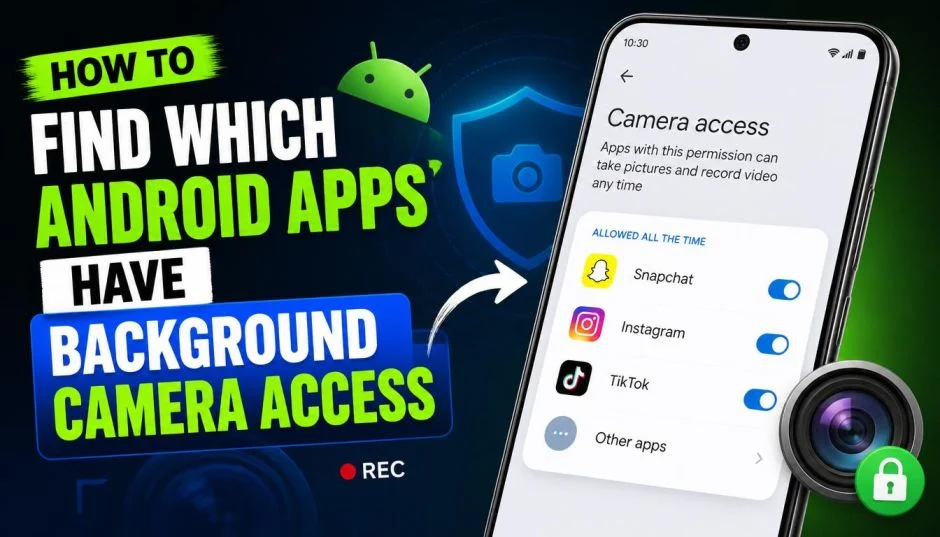
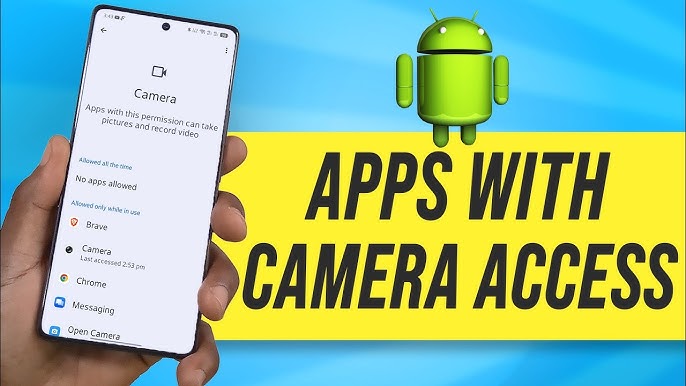
The Privacy Dashboard shows you when apps accessed your camera. The Permission Manager shows you which apps have permission to access it at all.
Google app permission settings live in one place now. Here is the path:
-
Settings > Security & privacy > Privacy controls > Permission manager
-
Tap Camera
-
You see every app on your phone. Three categories:
-
Allowed all the time (highest risk)
-
Allowed only while using the app (medium risk)
-
Denied (safe)
-
I went through my Camera permission list last week. Found eight apps with "Allowed all the time." Eight.
Most of them did not need it. A barcode scanner? Fine, keep it. A meditation app? Revoked. A food delivery app? Revoked. A PDF reader? Revoked.
Here is my rule now. If an app does not absolutely need my camera for its core function, it gets "Denied." No exceptions.
Automatic Permission Reset: Set It and Forget It
Android 14 and 15 added a feature I love. If you do not open an app for a few months, Android automatically revokes its permissions.
You do nothing. The phone handles it.
I noticed this when I opened an old airline app before a trip. A popup asked me to grant camera permission again. I had not flown in eight months. The app had sat untouched. Android cleaned up after me.
Check if this is on:
-
Settings > Security & privacy > Privacy controls
-
Look for Auto-reset permissions
-
Make sure it is enabled
If you want to be extra careful, you can also check "Remove permissions for unused apps" in the same menu. Same feature. Different name on some phones.
One-Time Permissions: Temporary Access Only
Some apps ask for camera access "just this once." Android 15 expanded this feature. You can now grant camera access for a single session. The permission expires when you close the app.
I use this for hotel apps. Check-in requires scanning my ID. Then I never need camera access again. One-time permission solves that perfectly.
When an app asks for camera access, look for the option that says "Only this time." Not "While using the app." Not "All the time." "Only this time."
The app cannot come back later and use your camera without asking again.
The 3 AM Test: How I Catch Rogue Apps?
Here is the practical test I run every Sunday night.
Step 1: Turn off all camera toggles in Quick Settings. Camera and microphone both grayed out.
Step 2: Use your phone normally for an hour. If any app complains about missing camera access, ask yourself: "Does this app actually need my camera right now?" Most of the time, the answer is no.
Step 3: Before bed, turn the toggles back on. Check Privacy Dashboard the next morning.
Any app that accessed your camera while you slept is a problem. Period.
I found three apps this way over six months. A QR scanner that ran at 4 AM. A keyboard app at 2:30 AM. A game at 1:15 AM.
All three got uninstalled immediately.
Samsung and Pixel Differences
Most of this guide works on any Android 12 or newer phone. But Samsung does a few things differently.
On Samsung phones with One UI:
-
Privacy Dashboard is under Settings > Biometrics and security > Privacy Dashboard
-
Quick Settings toggles are called "Quick Panel" - swipe down twice, then swipe left to find Camera and Mic tiles
-
Samsung adds an extra feature: Notification history shows when apps accessed sensors even if the green dot did not trigger
On Pixel phones (stock Android):
-
Everything matches the steps above exactly
-
Pixel gets Privacy Dashboard updates first
-
The 7-day view rolled out to Pixel devices before any other brand
Both work well. Samsung adds more warnings. Pixel keeps it simpler.
What About Older Android Versions?
Running Android 11 or older? You still have options.
The green dot does not exist. Quick Settings toggles might not be there. But Permission Manager works on every Android version back to 6.0.
-
Settings > Apps & notifications
-
Tap See all apps
-
Pick any app
-
Tap Permissions
-
Check Camera
You have to check each app individually. No Privacy Dashboard. No timeline. But you can still see which apps can access your camera. And you can revoke anything suspicious.
My advice? Upgrade if you can. Android 12 and newer add too many privacy features to ignore.
The One Setting Most People Miss
Google app permission settings has a hidden menu. Most people never look here.
Settings > Google > Personal info & privacy > Google app permissions
This shows you which permissions Google's own apps use. Google Lens. Google Photos. Google Assistant.
I found Google Lens set to "Allowed all the time." I changed it to "Only while using the app." Nothing broke. Lens still works when I open it. It just cannot run in the background anymore.
Check this menu today. It takes thirty seconds.
Red Flags: When to Revoke Immediately?
Some permission patterns scream trouble. Revoke immediately if you see:
Camera accessed more than 50 times in one day. Unless you are a content creator filming all day, this is excessive. I saw this with a QR scanner that scanned every time my screen turned on. Revoked.
Camera accessed between midnight and 6 AM. No legitimate reason for this. Weather app at 3 AM? Revoked. Game at 1 AM? Revoked. Keyboard app at 2:30 AM? Revoked and uninstalled.
App that should not need camera requesting it. PDF reader. Calculator. Compass. Flashlight. These have zero reason to touch your camera. Deny on principle.
App asking for camera access immediately after install. I installed a QR scanner once. First thing it did? Ask for my location. Then my camera. Then my contacts. Uninstalled.
What I Learned After Six Months of Tracking?
I started this experiment in January. Six months of watching every camera access on my phone.
Here is what surprised me.
Social media apps access your camera more than you think. Instagram checked my camera 23 times in one day. I did not open Instagram once that day. Background checks. Pre-loading the camera for faster opening. That was their excuse. I turned off "Background app refresh" for Instagram. Problem solved.
Weather apps are the worst offenders. Three different weather apps accessed my camera at odd hours. One did it at 3:47 AM. Another at 11:23 PM. They all claimed it was for "customizing alerts based on your environment." I call that nonsense. All three got revoked.
The safest setup I found: Leave the camera toggles off in Quick Settings unless you actively need the camera. Turn them on when you open the camera app. Turn them off when you are done.
Yes, it takes two extra taps. But my battery lasts two hours longer. And I sleep better knowing no app is watching my room at 3 AM.