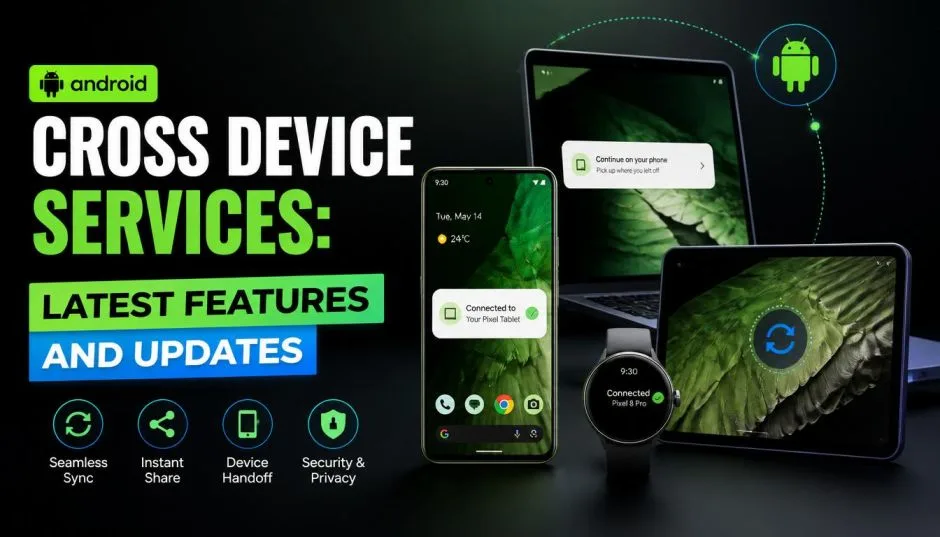
You just saw "Cross Device Services" running on your phone. And now you have questions. What is this thing? Is it safe? Why is it using battery? Do you need it? I have been using Android's cross-device features since they first rolled out in 2024.
Let me walk you through exactly what Android Cross Device Services does. The latest updates from Google I/O 2026. And yes, the honest answer to Is cross device services safe for your privacy. No marketing nonsense. Just real answers.
What Actually Is Android Cross Device Services?
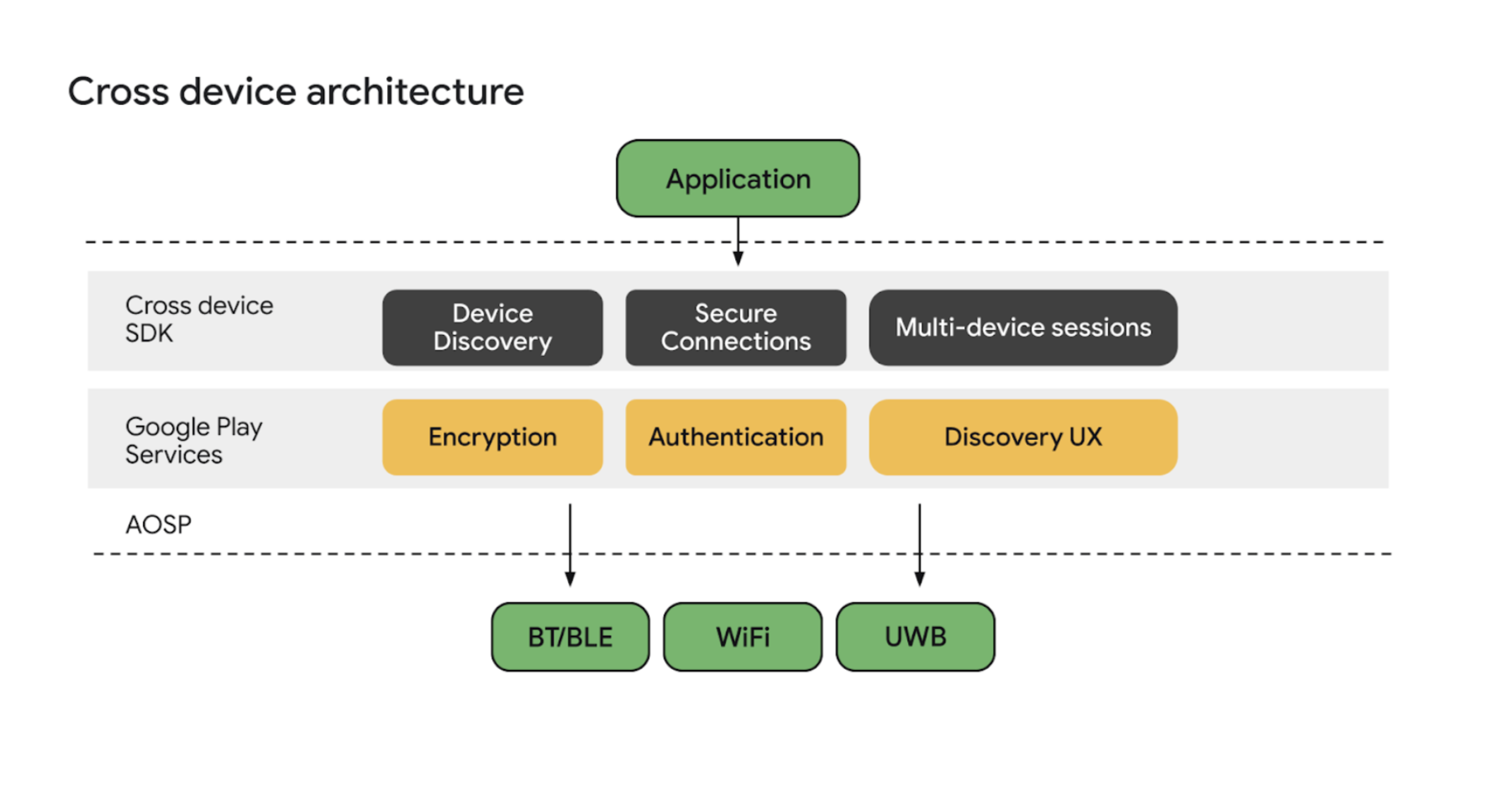
Android Cross Device Services is Google's system for making your Android gadgets work together. Think of it as Google's answer to Apple's Handoff and Continuity features.
Read Also: How to Retrieve Deleted Text Messages for Android? Step By Step Guide
You know that feeling when you switch from your phone to your laptop and lose your place? Cross device services fixes that.
The service runs in the background on your Android devices. It connects phones, tablets, Chromebooks, and other gadgets signed into the same Google Account. Once connected, these devices can share calls, internet connections, and soon, even your current task.
Google first announced this at I/O 2024. Two features launched that year. Call casting for Google Meet. And instant hotspot for internet sharing.
Now in 2026, things are getting much bigger.
The Latest Features Coming to Android 17
Google I/O 2026 just dropped some major news. Android 17 will include a feature called "Continue On". And it changes everything. Here is what Continue On does.
You start writing an email on your phone. You pick up your tablet. The email app icon appears right in your tablet's taskbar. You tap it. The email opens exactly where you left off.
No searching. No reopening. No "where was I" frustration.
Google demonstrated this with Google Docs and Gmail. A document open on a phone continued on a tablet in the same tab. Same edit position. Same cursor location.
The feature works both ways. Phone to tablet. Tablet to phone. Google also added a fallback system. If your tablet does not have the app installed, Continue On opens the task in a web browser instead. You never lose your place.
When will you get this? In the coming weeks. Continue On arrives with the Android 17 release candidate.
Features Already Available Right Now
Not everyone runs Android 17 beta. Here is what works on your current device today.
Call Casting
You are on a Google Meet video call on your phone. You walk into your home office. You want to switch to your tablet or laptop. Tap the Cast icon. The call moves. Seamlessly.
No dropped connection. No "let me call you back." The video just appears on the other screen.
Currently supports only Google Meet. But the framework exists for other apps to add this later.
Instant Hotspot
This one saves me constantly. Your tablet or Chromebook needs internet. Your phone has a 5G connection. Instead of typing a long password, your tablet just connects. Automatically.
You Must Also Like: Android 16 QPR3 Introduces Blue Dot Indicator for Location Access
Bluetooth must be on. Both devices need the same Google Account. That is it.
Important note for Samsung users: This specific instant hotspot feature does NOT work on Samsung devices. Samsung has its own auto-hotspot feature instead. Use that.
App Streaming to Chromebooks
Your Chromebook can run apps from your phone. Reply to messages. Check ride share status. Edit shopping lists. All without picking up your phone. This has been around for a while. But it keeps improving with each update.
Features Coming Soon (But Not Yet Live)
Google is working on more. Code strings discovered inside Google Play Services reveal these upcoming features .
Universal Clipboard
Copy text on your phone. Paste it on your tablet. No emailing yourself. No WhatsApp forwarding. Just copy and paste across devices.
The code includes: <string name="universal_clipboard_feature_switch_summary">Copy and paste content across your devices</string>
This is not live yet. But the code is there. Likely arriving with Android 17.
Do Not Disturb Sync
Turn on Do Not Disturb on your phone. Your tablet and Chromebook automatically go silent too.
The code confirms it: <string name="dnd_sync_feature_switch_summary">Sync Do Not Disturb across your devices</string>
No more silencing three devices individually. Set it once. Done.
Task Handoff (Expanded)
The current Continue On feature focuses on phone to tablet. Google is building a broader "Tasks" handoff. Start browsing on your phone. Continue on your tablet. Or Chromebook. Or any Android device.
Is Cross Device Services Safe?
You asked. I will answer straight.
Yes, Cross Device Services is safe. Google built this with standard Android security models. But "safe" comes with conditions you need to understand.
What Google Can See?
When you enable cross device services, other devices in your group can see your device name and some device information. That is how they recognize each other.
For call casting, some data about your devices is shared with the app (like Google Meet) when you switch devices. This is necessary for the transfer to work.
What You Control
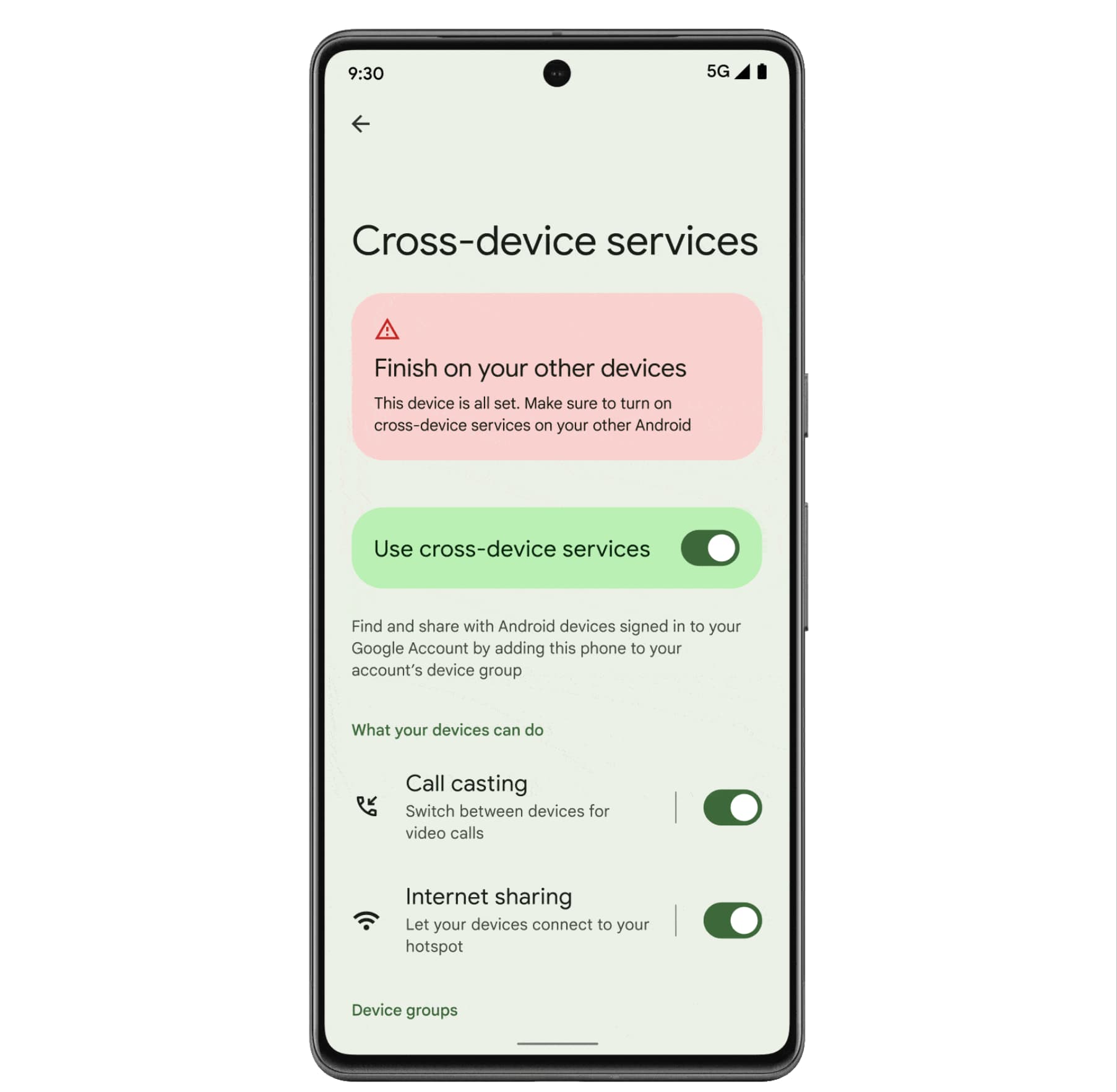
You control everything. Settings > Google > Devices & sharing > Cross-device services. From there you can:
-
Turn the entire service on or off
-
Enable or disable call casting separately
-
Enable or disable instant hotspot separately
-
See exactly which devices are in your group
-
Remove any device from the group
The Privacy Trade-Off
Here is the honest trade-off. Convenience requires some data sharing. Your devices need to know about each other to work together.
Google does not share this data with third parties. The communication happens between your devices and Google's servers for coordination. But it is encrypted.
Who should NOT use this: People in high-security professions. Journalists working with sensitive sources. Anyone who needs absolute certainty that devices are not talking to each other. For everyone else? The convenience likely outweighs the minimal privacy trade-off.
How to Remove Cross Device Services?
If you decide you do not want this, removal is simple. You do not need to uninstall anything.
To turn it off: Settings > Google > Devices & sharing > Cross-device services. Toggle off "Use cross-device services".
To remove a specific device from your group: Same menu. Tap your Google Account under "Device groups." You will see a list of connected devices. Turn off the device you want to remove.
To uninstall the APK completely: Go to Settings > Apps > See all apps. Find "Cross-Device Services." Tap Uninstall.
But here is my advice. Do not uninstall. Just turn it off. Android system apps sometimes misbehave when fully removed. Toggle off is safer.
Cross Device Services APK: Should You Download Manually?
You searched for Cross device Services APK. Let me give you straight guidance.
The official APK version as of May 2026 is 1.0.1131.0. Previous versions include 1.0.1085.0 (February 2026) and 1.0.1020.0 (January 2026).
Should you download the APK manually? Only if you know what you are doing. And only from trusted sources.
Safe Sources
-
APKMirror (verified signatures)
-
APKPure (signature verification)
-
Google Play Store (best option)
Unsafe Sources
-
Random websites
-
Telegram channels
-
"Modded" APK sites
The APK carries Google's signature: 5fa4c65878dc52d393d086b1ecb35e557d9f617e. If a download does not match this signature, it is fake. Do not install it.
Better Alternative
Just update Google Play Services. Cross Device Services updates come through Play Services. You do not need to hunt for APKs. Open Play Store > Settings > About > Update Play Store. Done.
Cross Device Functions Running: What Is Actually Happening?
You saw "cross device functions running" in your battery stats or running services list. Here is what that means.
The service runs a lightweight background process. It listens for:
-
Nearby devices signed into your Google Account
-
Call casting requests
-
Hotspot sharing triggers
-
Task handoff signals (Android 17 feature)
Normal battery usage: 1-3% per day. If you see higher, check which feature is active. Call casting uses more when active. Instant hotspot uses more when sharing.
High battery drain fix: Turn off instant hotspot. That feature constantly scans for nearby devices. Disable it if you do not use it. Settings > Google > Devices & sharing > Cross-device services > Internet sharing > Off.
Honest Pros and Cons
Let me break this down simply.
Pros
| Feature | Benefit |
|---|---|
| Call casting | Switch video calls between screens mid-call |
| Instant hotspot | No more typing passwords on your tablet |
| Continue On (coming) | Start on phone, finish on tablet |
| Universal clipboard (coming) | Copy on one device, paste on another |
| DND sync (coming) | Silence all devices at once |
Cons
| Issue | What It Means |
|---|---|
| Samsung incompatibility | Instant hotspot does not work on Samsung |
| Google Meet only | Call casting does not work with Zoom or Teams yet |
| Requires Android 11+ | Old phones are left out |
| Battery impact | Instant hotspot drains battery if left on |
| Privacy trade-off | Devices share some information to work together |
Who Is This Best For?
-
People with multiple Android devices (phone + tablet + Chromebook)
-
Heavy Google Meet users who switch between screens
-
Anyone tired of typing hotspot passwords
-
Samsung users? Skip instant hotspot. Use Samsung's auto-hotspot instead.
Who Should Skip?
-
Single device owners (you get zero benefit)
-
Privacy-focused users uncomfortable with device data sharing
-
Android 10 or older users (not supported)
-
People who never use Google services
How to Set This Up Correctly?
Here is my tested setup guide.
Step 1: On each Android device, go to Settings > Google > Devices & sharing > Cross-device services. Turn it on.
Step 2: Enable Bluetooth on all devices. Keep it on. Cross device services requires Bluetooth.
Step 3: Under "Device groups," check that all your devices appear. If a device is missing, open Settings on that device and repeat Step 1.
Step 4: Decide which features you actually need.
-
Call casting: On if you use Google Meet
-
Instant hotspot: On if you tether frequently. Off otherwise (saves battery)
-
Continue On: Will appear after Android 17 update
Step 5: Test it. Open Google Meet on your phone. Tap the Cast icon. Move the call to your tablet. If it works, setup is complete.
Step 6 (Samsung users): Ignore instant hotspot. Use Settings > Connections > Mobile Hotspot and Tethering > Auto Hotspot instead.
Common Problems and Fixes
Problem: Devices not finding each other
Fix: Check Bluetooth is on. All devices on same Google Account. Same Wi-Fi network helps but not required.
Problem: Call casting icon not appearing
Fix: Update Google Meet. Update Google Play Services. Restart both devices.
Problem: Instant hotspot not working on Samsung
Fix: This is expected. Use Samsung's auto-hotspot feature instead.
Problem: High battery drain
Fix: Turn off instant hotspot. Keep only call casting enabled.
Problem: "Cross device services keeps stopping"
Fix: Clear cache. Settings > Apps > Cross-device services > Storage > Clear cache. If that fails, uninstall updates and reinstall from Play Store.
The Final Thoughts
Android Cross Device Services is genuinely useful if you own multiple Android devices. The upcoming Continue On feature in Android 17 finally gives Google something close to Apple's ecosystem magic.
Is it perfect? No. Samsung incompatibility on instant hotspot is annoying. Call casting works only with Google Meet. But the direction is clear. Google is building a connected Android ecosystem.
Should you enable it? Yes, if you have multiple Android devices. The convenience outweighs the minimal privacy trade-off for most people.
Should you download the APK manually? No. Just update Google Play Services. Let the updates come automatically.
Is it safe? Yes, for normal users. No, if you need absolute privacy isolation.
The service runs quietly in the background. You will forget it is there. Until you switch a call from your phone to your tablet. Or your tablet grabs your phone's internet without asking for a password. Then you will appreciate it.
Android is finally learning to share. It is about time.