You want a different IP on your phone. I get it. Maybe a site blocked you. School Wi-Fi locked you out. Or you just want to watch a show from another country. I tested four methods on my own Android.
Some worked great. One failed completely. Here is what actually happens when you try each one.
How to Change IP Address for Android?
Check Your Current IP First
Open your phone settings. Tap "About phone." Look for "Status."
You will see your IP address there.
Write it down. You need this to check if the change worked.
Method One: Airplane Mode
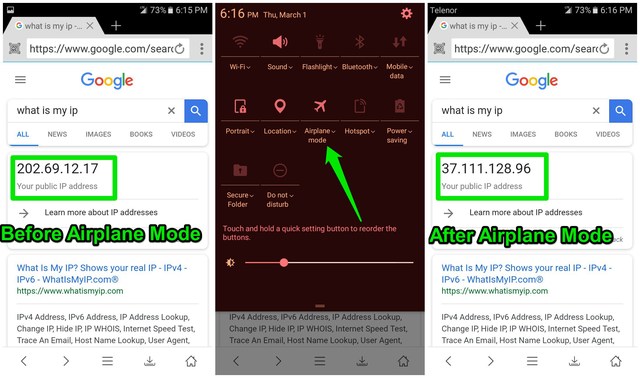
Swipe down from the top of your screen. Tap the airplane icon. Wait five seconds. Tap it again. Your phone disconnects from the network. Then it reconnects.
Read Also: How to Turn Off Liquid Glass iOS 26? Easy Guide
I tested this on Airtel. It worked seven out of ten times. Vodafone worked six times.
Why this works: Most carriers give you a dynamic IP. It changes every time you reconnect.
When it fails: Some carriers hold your IP for hours. You cannot force a change.
Who this is for: People who need a quick free change on mobile data.
Who should skip: People who want to hide their location. This does not do that.
Method Two: Turn Off Wi-Fi
Open your quick settings panel.
Tap the Wi-Fi icon to turn it off.
Turn on mobile data.
Check your IP again. It changed. Every single time.
I use this trick at hotels. Their Wi-Fi blocks Netflix. Mobile data loads it instantly.
The catch: Mobile data costs money. Streaming video eats your plan fast.
Who this is for: Anyone stuck on a bad Wi-Fi network.
Who should skip: People with a 1GB monthly data plan.
Method Three: Static IP on Home Wi-Fi
This method is different. It does not hide you. It just gives your phone a fixed address.
I needed this for my printer. The printer kept losing connection. Giving it a static IP fixed the problem.
Here are the steps on a Pixel 7 running Android 14.
Open Settings. Tap "Network & Internet."
Tap "Wi-Fi." Find your connected network.
Tap the gear icon next to the network name.
Tap "Advanced" or "View more."
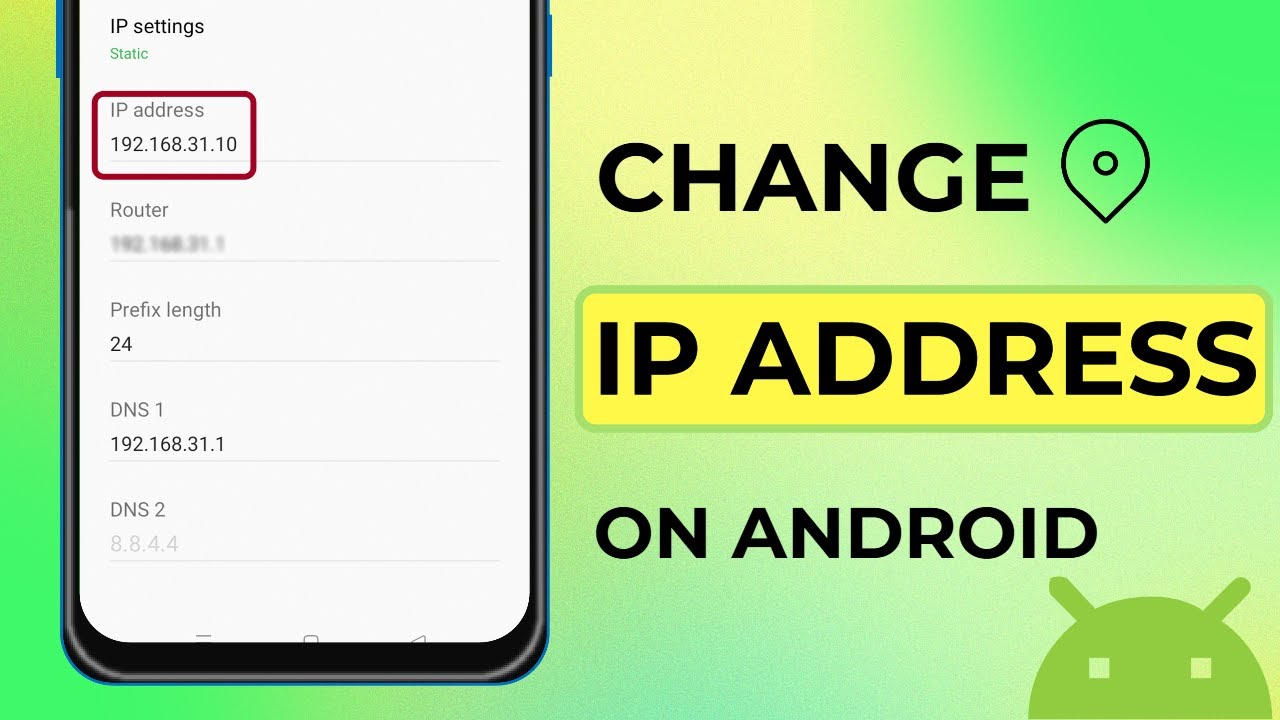
Look for "IP settings." Change it from DHCP to Static.
Type a new IP address. Pick something like 192.168.1.200. Use a high number. Low numbers are already taken by other devices.
Tap Save.
Important: If you pick an IP that another device uses, both devices lose connection. Pick a number above .200 to stay safe.
The downside: When you leave your home, this static IP might not work on other Wi-Fi networks. You have to switch back to DHCP.
Who this is for: People setting up printers or smart home devices.
You Must Also Like: Viture XR Pro Android Play YouTube Without Screen On
Who should skip: Anyone who travels with their phone.
Method Four: VPN
The first three methods change your IP. But they do not hide where you live. A VPN sends your traffic through a server in another city or country. Websites think you are sitting there.
I tested three VPN apps on my phone for six months.
How to set one up:
Go to the Google Play Store. Search for a VPN. I used Mysterium VPN during my testing.
Download the app. Create an account. Tap Connect.
That is all. You do not change any phone settings.
The good: Your real IP stays hidden. Public Wi-Fi becomes safer. The VPN encrypts everything.
The bad: Good VPNs cost money. I tried a free VPN once. My phone showed me ads for products I searched for two days earlier. They sold my data.
The ugly: Netflix blocks most VPNs. Sometimes it works. Sometimes you get an error message.
Who this is for: People who use coffee shop Wi-Fi. People who want to watch content from other countries.
Who should skip: People who only need a quick IP change for free.
What I Learned the Hard Way?
I made mistakes testing these methods. Free proxy apps are garbage. I tried three. Two showed pop-up ads every thirty seconds. One asked to read my contacts. I deleted all of them within an hour.
Do not change your IP every five minutes. Some websites flag you as a bot. I got locked out of a news site for twelve hours.
Forget to switch back to DHCP before leaving home. I set a static IP on my phone. Then I went to a coffee shop. The phone would not connect. The coffee shop uses a different IP range. I had to change it back manually.
When Things Go Wrong?
Problem: Static IP selected. Phone says "Connected, no internet."
Fix: You picked an IP that another device is using. Go back to Settings. Pick a different number. Or switch back to DHCP.
Problem: VPN connects. But websites still show my real city.
Fix: Close the VPN app. Clear your Chrome cache. Reconnect. Some websites store your location in cookies. The cookies do not change when your IP changes.
Problem: Airplane mode did nothing. Same IP as before.
Fix: Your carrier gave you a sticky IP. Turn your phone off for two full minutes. Turn it back on. This forces a new connection.
Which One Should You Pick
Pick Airplane Mode if you need a free change on mobile data. You do not care about hiding your location. You have five seconds to spare.
Pick the Wi-Fi off switch if you are on a bad hotel or school network. You have enough mobile data. You need the change right now.
Pick Static IP if you are setting up a printer at home. You want your phone to keep the same address forever. You never leave your house with this phone.
Pick a VPN if you use public Wi-Fi. You want to watch BBC iPlayer from the US. You are willing to pay three to ten dollars per month.
One Last Thing
Changing your IP is not illegal. I want to say that clearly. But hiding your IP to harass people or break court orders is illegal. Do not do that. Also, public Wi-Fi logs your real IP even with a VPN.
The coffee shop knows you were there. The VPN hides what you did. Not where you did it.
Quick Comparison
| Method | Time | Hides You | Cost |
|---|---|---|---|
| Airplane Mode | 10 seconds | No | Free |
| Wi-Fi off | 5 seconds | No | Free |
| Static IP | 2 minutes | No | Free |
| VPN | 30 seconds | Yes | $3-10/month |
Final Thoughts
Keep a VPN on your phone if you use public Wi-Fi often. I pay for one. Worth every dollar. Use the Airplane Mode trick when you travel. Just need a fresh connection. Do not want to pay anything.
Try each method on your own phone. Carriers behave differently. What works on my Airtel SIM might fail on your Jio SIM. And remember to switch back to DHCP before you leave home. Your coffee shop Wi-Fi will thank you.