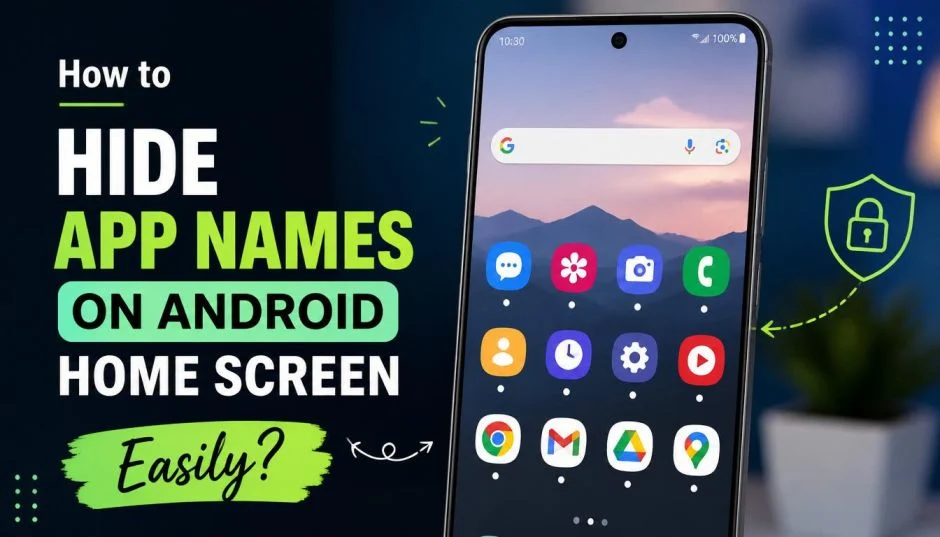
I have been staring at my phone screen for years. The clutter bothered me. App icons everywhere. Names under each one. It felt busy. Messy. Like a crowded desk I could not clean. Then I found the fix. You can hide those labels.
The screen looks cleaner instantly. The wallpaper pops. You stop reading text and start recognizing shapes. Here is exactly how to do it on different phones.
The New Android 17 Way (Pixel Phones)
Google finally listened. Android 17 Beta 3 added a native option to hide app names on the Pixel Launcher. This is huge. Before this, you needed third-party launchers to get the minimalist look. Not anymore. The feature is built right in.
Read Also: Android 17 Hidden Features Revealed (2026 Update)
I tested this on a Pixel device. The process takes ten seconds.
Step one: Long press any empty space on your home screen.
Step two: Tap "Wallpaper & style" from the pop-up menu.
Step three: Scroll down and select "Icons."
Step four: Look for the new "Names" tab at the bottom. Tap it.
Step five: Flip the toggle next to "Show app names" to the off position. Then tap "Apply" in the top-right corner.
That is it. Your home screen refreshes. The labels vanish. Only the icons remain.
Who This Feature Works For?
The minimalist: You want a clean aesthetic. Text clutters your wallpaper. Removing it makes the screen feel open. Calm.
The visual thinker: You recognize apps by their icons. You know what Instagram looks like. You know the Gmail envelope. You do not need the words.
The power user: You have fewer apps on your home screen. You know exactly where everything sits. Labels are redundant.
Who Should Skip This?
The new user: You just switched from iOS. You are still learning the Android icon set. Names help you find things.
You Must Also Like: How to Sideload Apps iOS Without Revoke iOS 15?
The app collector: You have ten apps in a folder. Some icons look similar. Google Drive and Google Docs share colors. Without text, you might tap the wrong one.
The searcher: You do not remember where apps live. You use the search bar constantly. Labels are your map.
The accessibility user: You rely on text for visual clarity. Removing it makes navigation harder.
Important Limits
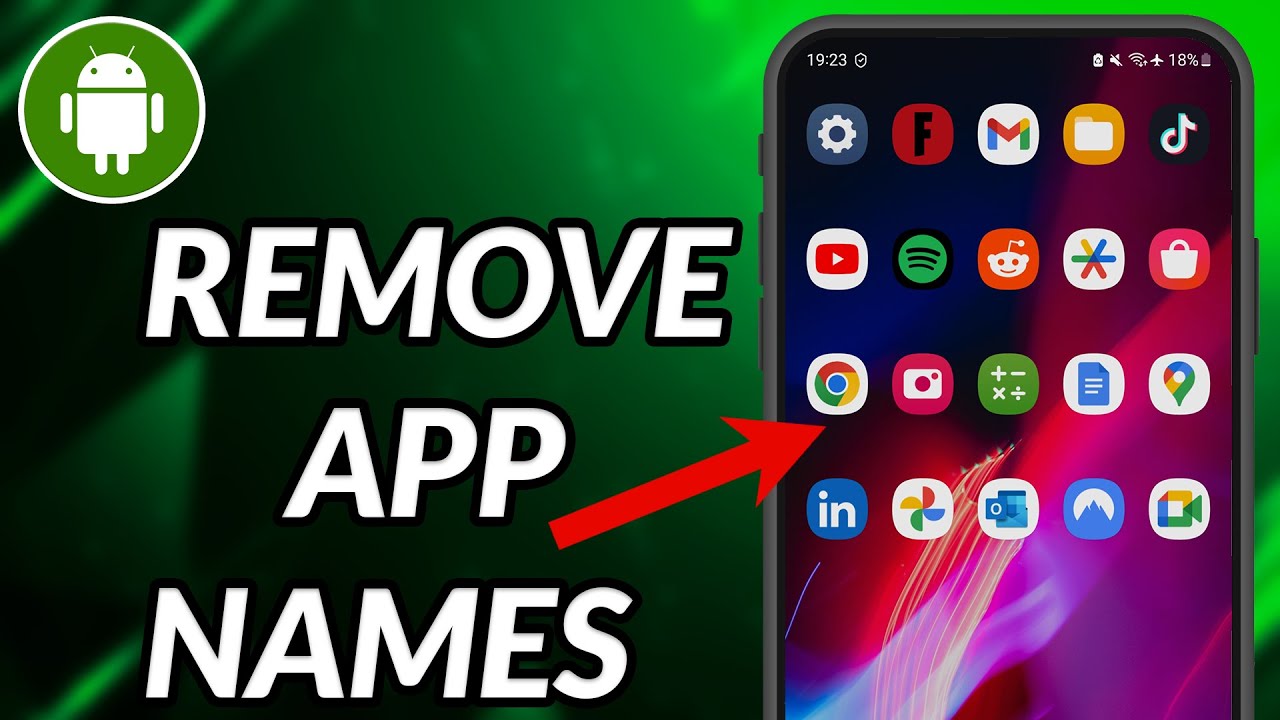
The toggle only affects your home screen. The app drawer still shows names . That makes sense. The drawer has more apps. You need labels there.
For now, this feature is Pixel-only. Other Android phones do not have it yet. Google may roll it out to more devices later. But if you have a Samsung or Xiaomi, you need a different approach.
Samsung One UI Method
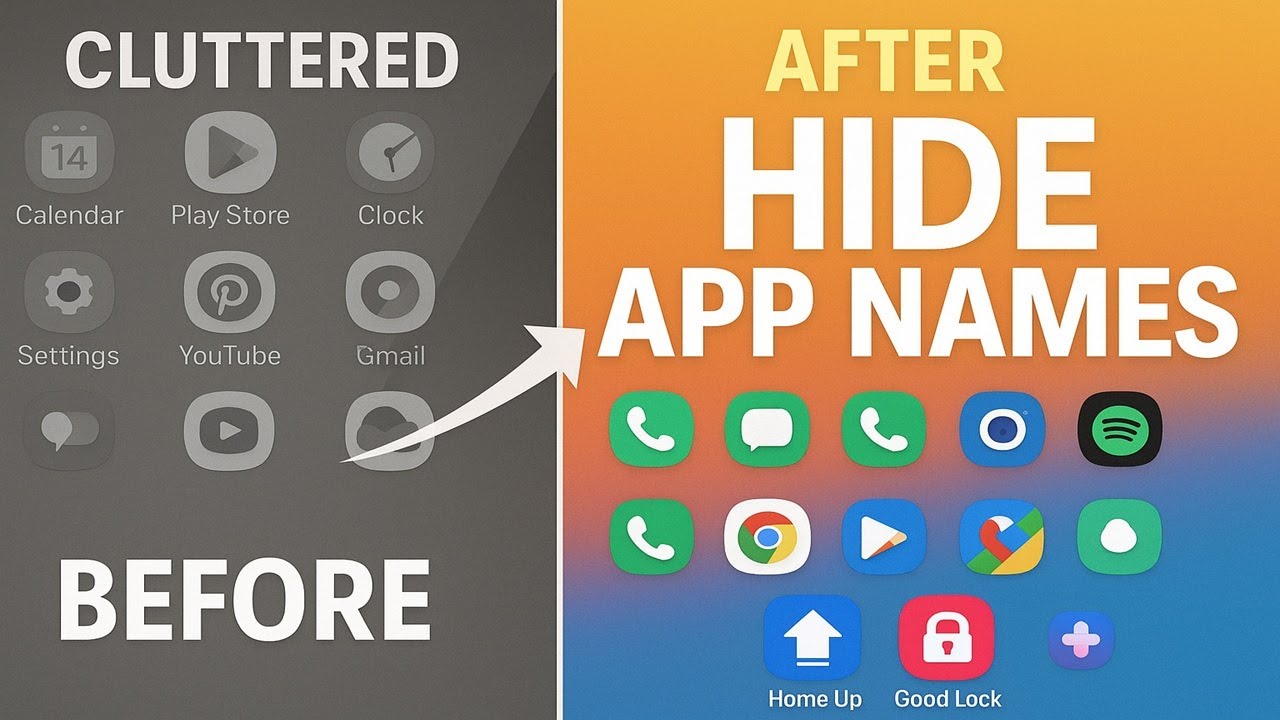
Samsung users have had this option for a while. It works on One UI 6.0 (Android 14) and above. Here is how I do it on my Galaxy:
Step one: Unlock your phone and long press an empty area on the home screen. A menu appears.
Step two: Tap "Settings" (the gear icon) at the bottom.
Step three: Look for "Show app labels on Home screen." The toggle is on by default.
Step four: Flip it off.
That removes labels from your home screen. The app drawer stays labeled. If you want to remove labels from the app drawer too, you need Good Lock.
Good Lock on Samsung (The Deep Customization)
Good Lock is Samsung's secret weapon. It is an official app from Samsung. Not many people know about it. It gives you extreme customization options.
Install Good Lock from the Galaxy Store. Open it. Download the Home Up module.
Inside Home Up, go to:
Home Screen > App Icon Setting
You will see options for labels on the home screen. You will also see labels for the app drawer. Turn them off individually.
This gives you complete control. Clean home screen. Clean drawer. No text anywhere.
Xiaomi / MIUI Approach
Xiaomi handles this differently. You cannot just remove labels from the home screen. But you can hide apps entirely. That removes both the icon and the name.
Method one: App Lock
Go to Settings > Privacy Protection > Hide Apps. This hides the app from your home screen, app drawer, and search results.
Method two: Privacy Space
Open Settings > Privacy Protection > Privacy Space. This creates a separate secure area. You move apps there. They disappear from your main screen entirely.
Method three: App Lock settings
Go to Settings > Apps > App Lock. Enable app lock. Then go to the settings inside App Lock and turn on "Hide desktop icon".
This completely removes apps from view. You can only access them through a gesture or search.
iOS Users (Bonus Section)
I know this is about Android. But I get asked this a lot. iOS 18 added a way to hide app names too.
Long press your home screen. Tap "Edit" in the top-left. Choose "Customize." Select "Large" from the menu. The icons grow bigger. The labels disappear.
This works on iOS 18 and iOS 26. The setting is universal. It applies to all home screen pages.
Why I Removed My Labels?
I turned off app names three months ago. I have not switched back.
My screen looks cleaner. The wallpaper is visible. The icons feel like art pieces. Not text-heavy buttons. I know every app by sight. The app drawer still has names. So I never get lost.
One downside. My mom used my phone last week. She could not find anything. She kept asking "What is that blue one?" I had to explain each icon. That is the trade-off. It works for me. It may not work for everyone.
The Final Thoughts
Hiding app names on Android is now easier than ever. Pixel users have the native toggle in Android 17. Samsung users have the built-in One UI setting or Good Lock for deeper control. Xiaomi users can hide apps through the App Lock or Privacy Space.
Try it for a week. See if your screen feels calmer. If you hate it, turn it back on. The toggle takes two seconds. No risk. Just a cleaner look.