I used to dread unknown numbers. Every call felt like a gamble. Was it a delivery? A work call? Another spammer trying to sell me something? Then I found Pixel Call Assist. It changed how I handle calls completely.
Here are the settings you should turn on immediately.
What Is Pixel Call Assist?
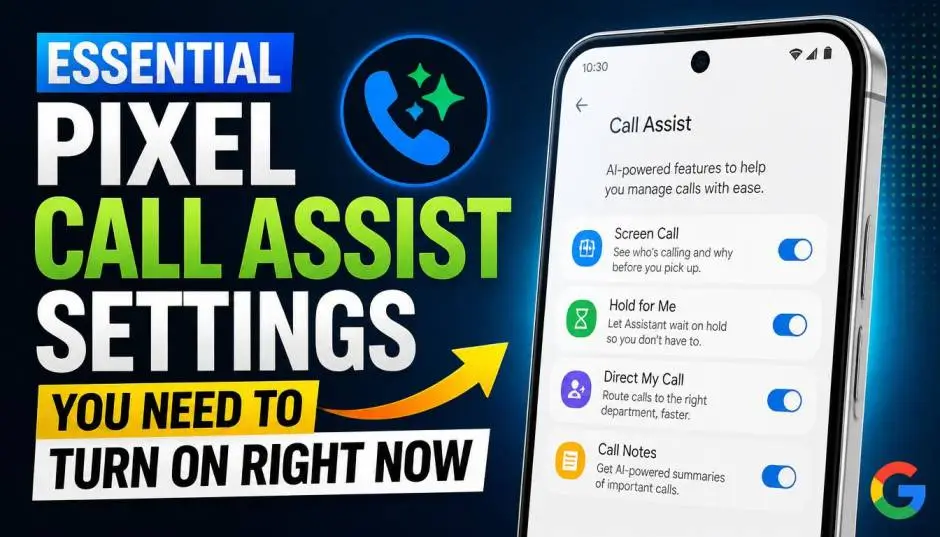
Pixel Call Assist is Google's collection of smart calling features. It includes five main tools: Call Screen, Hold for Me, Direct My Call, Clear Calling, and a Spam ID system.
Read Also: How to Transfer Android Files to Mac Without Android File Transfer App?
The star is Call Screen. It answers unknown calls for you and asks the caller who they are and why they're calling. The transcript appears on your screen in real time.
The system works on your device and doesn't use Wi-Fi or mobile data. That means you can screen calls even without an internet connection.
How to Enable Call Screen Settings?
Call Screen is disabled by default on most Pixel phones. You need to turn it on manually. Here's how:
Open the Phone app. Tap the three dots in the top right corner. Select Settings, then tap Call Screen. You'll see a toggle for Automatically screen calls. Turn it on.
Once enabled, you can choose a protection level. There are three options:
-
Maximum protection: Screens all unknown numbers
-
Medium protection: Screens spam and suspicious numbers
-
Basic protection: Only declines known spam callers
For Pixel 7 and newer, you can also screen specific caller types:
-
Spam
-
Possibly faked numbers
-
First-time callers
Each category can be handled differently. For example, you might automatically decline spam but manually screen first-time callers.
Manual Call Screen: When You Want Control?
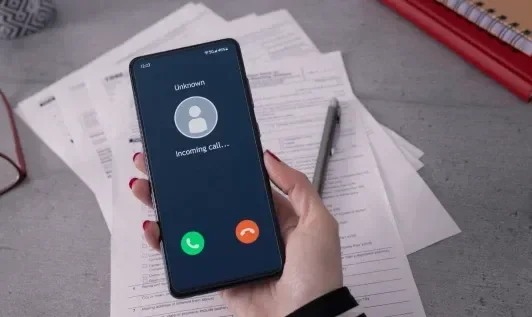
Sometimes automatic screening doesn't feel right. Maybe you're expecting an important call from an unknown number. Manual screening gives you more control.
You Must Also Like: How to Find Which Android Apps Have Background Camera Access?
When you receive a call, tap the Screen call button instead of answering. The Google Assistant answers with a recorded message. It explains the call is being screened and asks for context.
The transcript appears on your screen in real time. You can then choose from several options:
-
Is it urgent? Asks if the caller needs to reach you immediately
-
Report as spam: Hangs up and blocks the number
-
I'll call you back: Politely ends the call
-
I can't understand: Asks the caller to repeat themselves
You can also use AI-powered suggested replies. These are generated on your device based on what the caller says. They're more flexible than preset responses.
To enable AI replies, go to Phone app > Settings > Call Screen and turn on Respond with AI replies.
Where Does Call Screen Work?
This is important. Call Screen availability depends on where you are.
Automatic call screening works only in the United States on all Pixel phones. Manual call screening works in more countries:
-
Australia
-
Canada
-
France
-
Germany
-
India
-
Ireland
-
Italy
-
Japan
-
Spain
-
United Kingdom
-
United States
Manual Call Screen only works with a SIM card from a supported country. If you're traveling with a local SIM, the feature might not appear.
What About Your Pixel Watch?
Call Screen also works on Pixel Watches. But there are catches.
It's available only in the US and requires a Pixel 6 or newer phone. You need the Phone by Google app (version 116 or later) and the Phone app on your watch (version 50 or later).
Your watch must be connected to your phone over Bluetooth. When a call is screened automatically, you get a notification on your wrist.
Beyond Call Screen: Other Useful Features
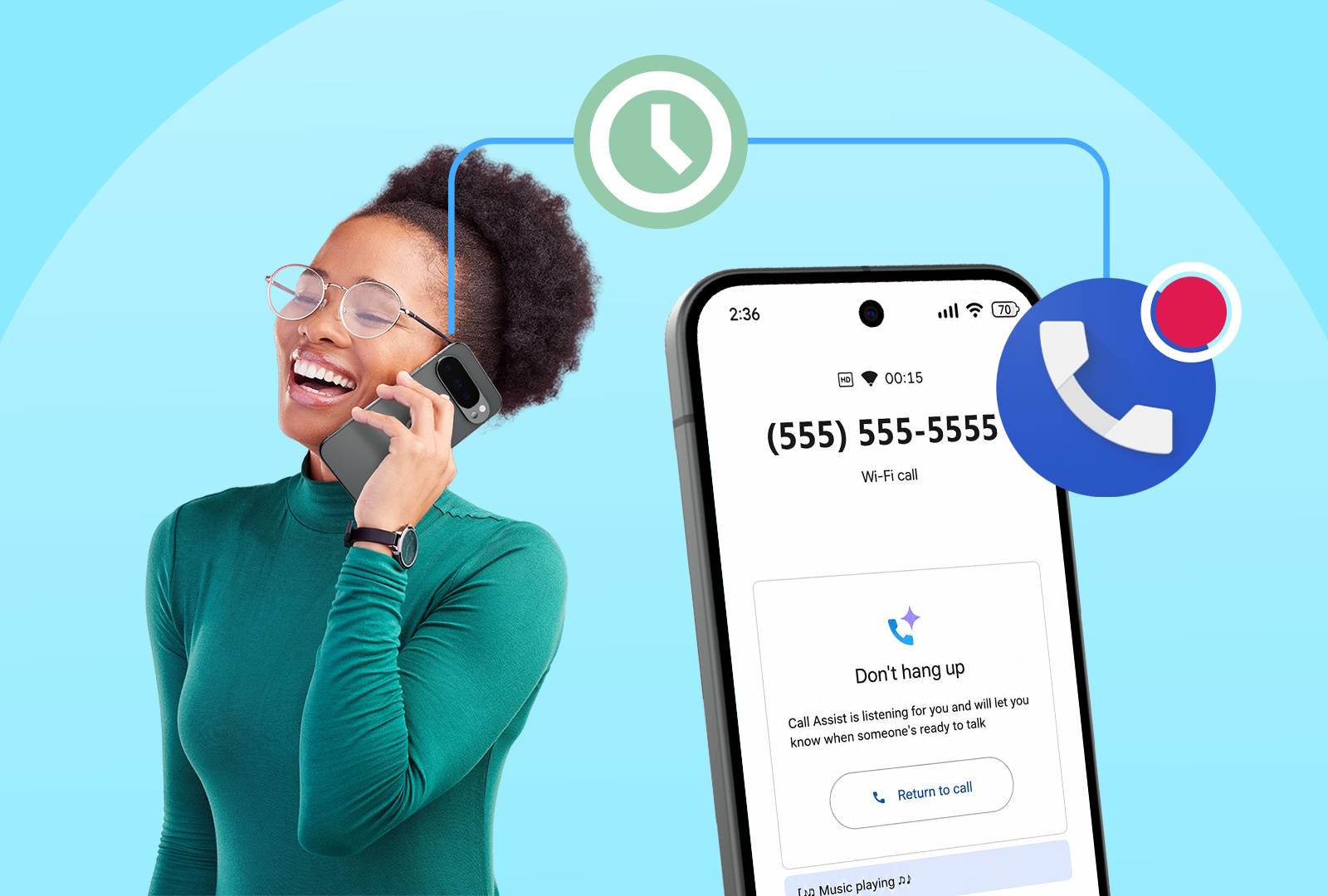
Hold for Me lets you leave your phone when you're on hold. The Assistant waits for you and rings when a representative returns. Turn it on in Phone app > Settings > Hold for Me.
Direct My Call transcribes automated phone menus. You can read menu options instead of listening to them. It's disabled by default. Enable it in Phone app > Settings > Direct My Call.
Clear Calling reduces background noise during calls. It enhances voice clarity. Go to Settings > Sound & Vibration > Clear Calling and toggle it on.
What To Know Before Enabling?
Call Screen doesn't work with third-party call recording apps. Turn these off before using the feature.
Automatic screening won't work during roaming. The feature needs to verify your location.
Your phone may stop playing media during screening. Music or videos pause when a call is screened.
The system isn't perfect. It might misunderstand what callers say. Use the transcript as a guide, not a verbatim record.
If you use headphones or Bluetooth, automatic screening might not work on some devices.
The Final Thoughts
Call Screen genuinely saves me time. I screen dozens of calls each week. Most spammers hang up immediately. Legitimate callers leave information.
The manual option is better for me because I'm active in the process. Automatic screening can misidentify genuine calls. Medium protection is the sweet spot—it catches spam but lets through real contacts.
If you have a Pixel, turn on Call Screen today. You'll wonder how you managed without it.