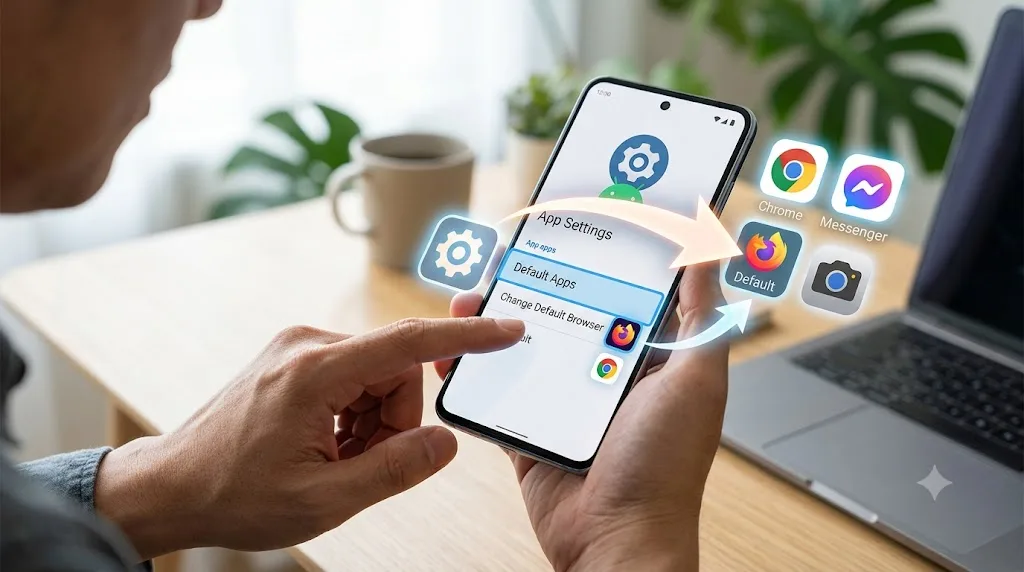
You open a link and your phone automatically opens it in Chrome. But you prefer Firefox. Annoying, right? I have been there. The good news is that on Android, you are not stuck with those choices. The system is designed to let you pick which app handles what.
In simple terms, a default app is the one your phone uses to do a specific job without asking you first. For example, your browser, your SMS app, or even your gallery.
If you are ready to take control, here is exactly how to change default apps android relies on. It is not difficult once you know where to look.
So, How to Change Default Apps On Android?
The Standard Way: Settings Menu
This is the main method. It works on most modern Android phones, whether you have a Pixel, a Samsung Galaxy, or an ASUS device. The core steps are the same.
Read Also: How to Improve Google Play Store Keyword Ranking in 2026?
Follow these steps to change default application android settings:
-
Open your phone's Settings app (the gear icon).
-
Find and tap on Apps.
-
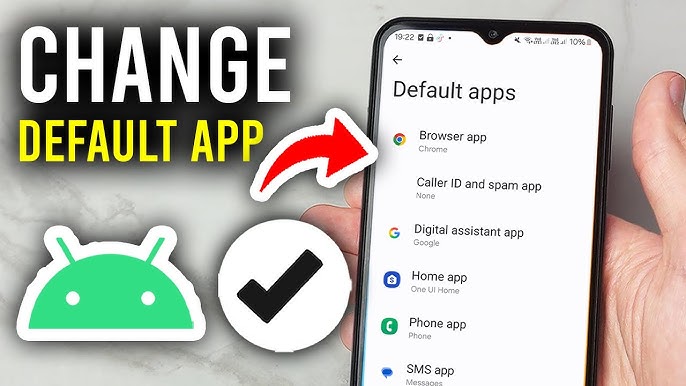
In this menu, look for Default apps. On some phones, you might need to tap a three-dot menu to find it .
-
You will now see a list of categories. This is the core of android changing default app functionality. You can change:
-
Browser app: Switch your default web browser.
-
Phone app: Change your dialer.
-
SMS app: Pick a new messaging app.
-
Home app: Change your launcher.
-
-
Tap on the category you want to change. A list of available apps will appear.
-
Tap the app you want to set as the new default .
The "Just Once" vs. "Always" Trick
Most of the time, you do not even need to go into the Settings app to change things permanently.
Think about how to delete default apps on Android without actually removing them. When you open a file or a link and your phone asks which app to use, you will see two options: Just Once and Always.
You Must Also Like: How to Transfer Android Files to Mac Without Android File Transfer App?
-
If you choose Always, that app becomes the default for that action.
-
If you choose Just Once, your phone will ask you again the next time.
This is the easiest way to test a new app. If you hit "Always" by accident, do not worry. You can fix it.
How to Undo a Mistake (Clear Defaults)?
I have definitely hit "Always" by accident and regretted it. It happens. Here is how to fix it.
If you have set an app as the default for a specific action, you can clear that preference. This forces your phone to ask you again next time, which is essential when you are trying to change default apps android and fix a mistake.
-
Go to Settings > Apps.
-
Tap on the app that you accidentally set as the default.
-
Look for an option called Open by default or Set as default .
-
Tap on Clear defaults (or Clear default preferences) .
Once you clear this, the next time you perform that action, Android will give you the "Just Once" or "Always" prompt again. This is the primary way to change default application android on an app-by-app basis.
Samsung Galaxy and Other Custom Skins
The instructions above cover the "pure" Android experience. But many phones use a custom "skin".
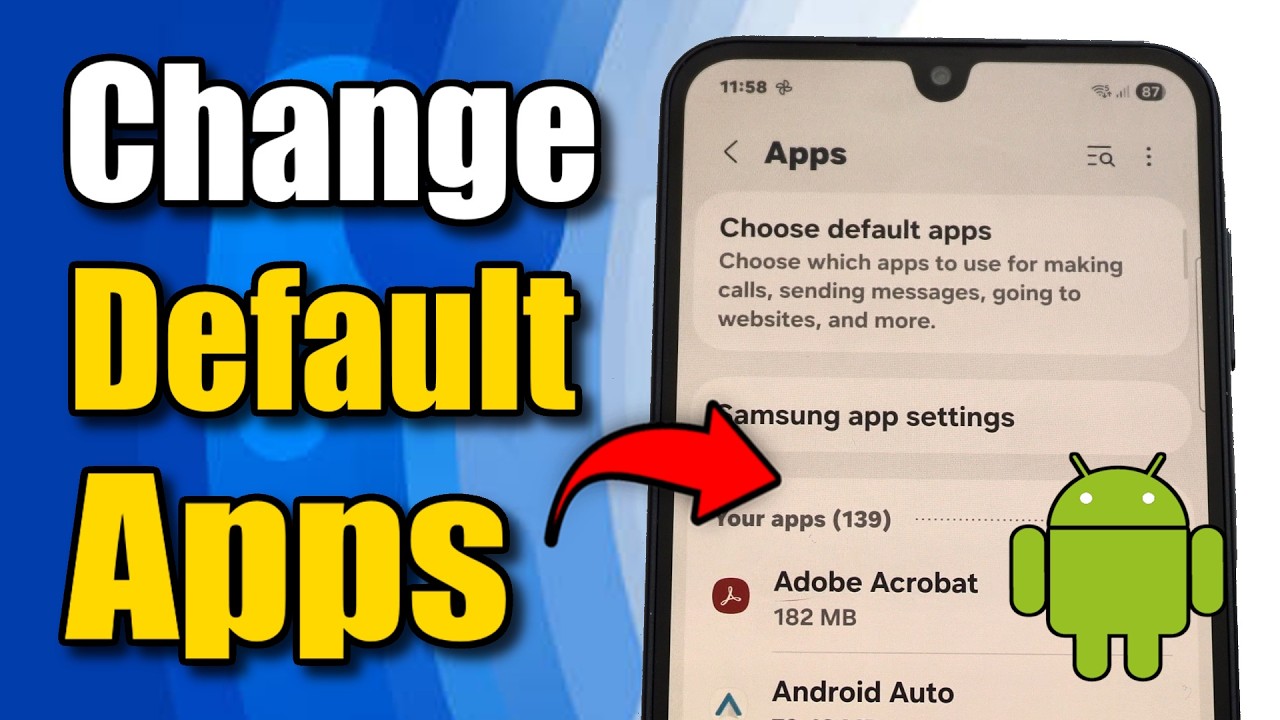
For Samsung (One UI): The process is almost the same, but the menu names can be different. Look for Settings > Apps > Choose default apps. On older models, the option might be hidden behind a three-dot menu in the Apps section.
Trending Post: How to Find Which Android Apps Have Background Camera Access?
For Xiaomi, Honor, Oppo, and others: The logic is very similar, though names might vary slightly. Do not panic if the exact wording is a little different. Look for "Apps" and then hunt for "Default apps" or something similar.
A Fast Track: Use the Three-Dot Menu
This is a handy trick if you are comfortable with the Settings app.
In many versions of Android, once you are in the Apps section of your Settings, you can tap the three-dot menu in the top-right corner.
From there, select Reset app preferences.
This resets all your default app preferences at once. It will not delete your apps or data, just clear your choices for default apps. Your phone will start asking you again for every action .
How to Delete Default Apps on Android (The Nuance)?
People often want to change default apps android because they want to get rid of the old ones entirely. But there is a catch.
What You Can Uninstall?
Many preinstalled apps, or "bloatware," can be uninstalled just like any other app .
-
On Pixel: You can uninstall apps like Google Play Games, but you might be stuck with apps like Chrome and Maps.
-
On Samsung: You can often uninstall apps like Samsung Free or Samsung TV Plus .
What You Can Only Disable?
Some system apps cannot be uninstalled. You can only disable them. When you disable an app, it stops running and disappears from your app drawer. It will not use up your battery or data, and it is effectively gone.
To disable an app, go to Settings > Apps, tap on the app, and look for the Disable button. Uninstall is not always an option for system apps .
The Advanced Way (ADB and Rooting)
For tech-savvy users, there are more advanced methods to remove stubborn system apps. One is using ADB (Android Debug Bridge) from a computer . The other is "rooting" your phone to get full control over its software .
I strongly advise against these unless you really know what you are doing. You risk damaging your phone's software if you delete the wrong system component.