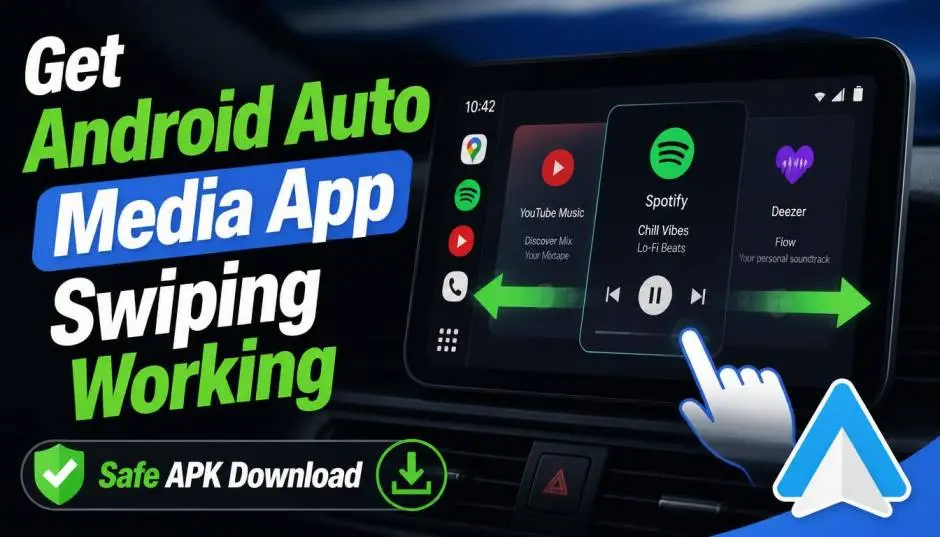
The Android auto media app swiping APK searches spike whenever Google pushes an update that breaks basic controls. That happened in early 2026. Android Auto 16 introduced a cosmetic change.
The media progress bar became a wavy line. That tiny design tweak broke steering wheel controls for thousands of users. Music apps stopped responding to skip and rewind commands. Scrolling through playlists became impossible.
Google fixed it quickly with version 16.1. The wavy line disappeared. The buttons worked again. But the incident exposed a bigger truth. Android Auto’s media interface remains fragile. And when it breaks, third-party APKs fill the gap.
What Actually Broke in Android Auto 16?
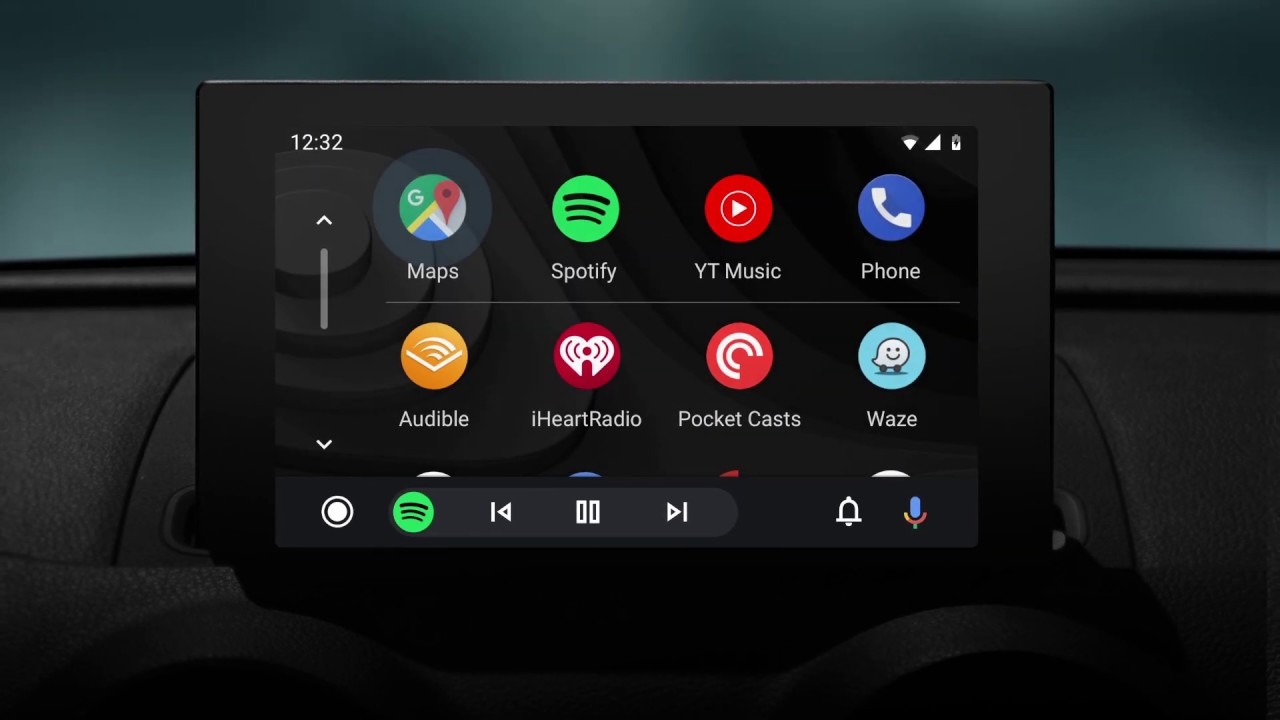
The root cause was bizarre. Google wanted a modern look. They replaced the straight progress bar with a wavy animation. That visual change somehow broke the hardware communication layer between the car’s steering wheel and the media app.
Read Also: How to Improve Google Play Store Keyword Ranking in 2026?
Users reported the same symptoms everywhere. Skip buttons stopped working. Rewind buttons stopped working. Some found the entire media interface frozen. Pausing music temporarily restored scrolling. But that fix only lasted until playback resumed.
The problem affected Spotify, YouTube Music, SoundCloud, and other streaming services. It wasn’t app-specific. Android Auto itself was the culprit.
Google’s response was pragmatic. They removed the wavy line in version 16.1. The straight bar returned. The buttons came back to life.
If you’re still on Android Auto 16.0, update immediately. The Play Store version should work. If it hasn’t arrived yet, APK Mirror hosts the 16.1 file. VirusTotal checks confirm it’s clean.
Safe APK Sources: What to Trust?
APK downloads carry risk. Google Play remains the safest option. But sometimes the update lags. Or a feature disappears. That’s when third-party sources matter.
APK Mirror is the most trusted alternative. It hosts original, unmodified APKs directly from Google. The site verifies signatures. It provides VirusTotal scan results. Security researchers cite it regularly.
GitHub releases work for open-source projects. The code is public. Developers sign their APKs. You can inspect the source before installing. That transparency matters for car apps that access your media library.
Avoid random APK websites. They bundle malware. They modify legitimate apps. A corrupted Android Auto APK could compromise your phone and your car’s head unit.
Open-Source Media Apps Built for Android Auto
When Android Auto’s native media handling fails, third-party apps offer workarounds. These aren’t official. They require enabling “Unknown Sources” in Android Auto developer settings. But they fill gaps that Google ignores.
FermataX: The Media Hub
FermataX is a free, open-source media hub designed specifically for Android Auto. It’s a fork of the Fermata Media Player project. The app consolidates local media, IPTV, podcasts, audiobooks, YouTube, and web media into one interface.
You Must Also Like: Android Lock Screen Advertising: How to Stop Ads in 2026?
The dashboard-first design suits car screens. It features a customizable navigation rail. The SmartTopCard shows now-playing info and quick actions. Voice control works across supported sources.
Installation requires KingInstaller, a tool that lets you install APKs with elevated permissions. The process isn’t simple. But the documentation walks through each step.
FermataX doesn’t provide content. It doesn’t host media. It’s a player. You supply the sources. That keeps it legally clean.
AAMediaMate: The Bridge
AAMediaMate solves a specific problem. Many popular music apps don’t support Android Auto. QQ Music. NetEase Cloud Music. KuGou. These apps have millions of users. None work natively in cars.
AAMediaMate bridges the gap. It reads media session data from your phone. It mirrors that information to the car screen. Play, pause, skip, and rewind controls all work. Optional lyrics display scrolls through the song title area.
The app is now available on Google Play. That makes installation easier. No APK sideloading required. The developer confirmed the official listing.
Lyrics display carries a safety warning. The developer explicitly says not to use it while driving. Park the car. Or let a passenger control the screen.
NuomiPlayer: The Lightweight Companion
NuomiPlayer follows the same bridge concept. It reads system MediaSession signals. It mirrors playback info and controls to Android Auto.
The app supports time-synced lyrics. It displays title, artist, album art, and a seek bar. Playback mode switching works (shuffle, repeat, etc.).
NuomiPlayer is lighter than AAMediaMate. It has fewer features. But it crashes less. The developer built it for daily use after growing frustrated with unstable alternatives.
APK downloads come directly from GitHub. That means you can verify the source. No sketchy mirrors. No bundled adware.
Why These Third-Party Apps Exist?
Android Auto’s media framework has limitations. Google controls which apps appear on the car screen. Developers must meet strict requirements. Small teams and regional apps often can’t qualify.
The result? Millions of users can’t access their preferred music in the car. They’re stuck with Spotify, YouTube Music, or local files.
Third-party bridge apps bypass these restrictions. They use Android’s MediaSession system. Any app that plays audio broadcasts this data. The bridge app captures it and reformats it for Android Auto.
This approach isn’t perfect. Controls sometimes lag. Metadata occasionally fails to load. But it works well enough for daily driving.
Safety Considerations Before Installing
Third-party car apps access sensitive data. They read your notifications. They control media playback. They might access your files.
Check the permissions. A media bridge app needs notification access. That’s expected. It shouldn’t request location, contacts, or camera permissions. If it does, find another option.
Enable Unknown Sources carefully. Android Auto developer settings let you install third-party apps. Turning this on opens a door. Only install apps you trust. Disable it when not needed.
Test in a parked car. Don’t debug a new app while driving. Install it. Park somewhere safe. Test every button. Check that scrolling works. Verify the app doesn’t crash. Then drive.
Keep the phone accessible. Some bridge apps require you to launch them on the phone before connecting to Android Auto. That’s a hassle. But it’s safer than digging through menus at 60 km/h.
The Final Thoughts
The Android auto media app swiping APK searches spike for a reason. Google’s updates break things. The fix arrives eventually. But the gap frustrates users.
If you’re on Android Auto 16.0, update to 16.1 or later. That solves the steering wheel bug.
If your preferred music app doesn’t support Android Auto, try AAMediaMate or NuomiPlayer. Both bridge the gap. Both come from GitHub. Both are free.
If you want a full media hub, explore FermataX. The setup is complex. But the features are unmatched. Always download from trusted sources. Always check permissions. Always test before driving. Your safety matters more than any music app.