

I discovered Circle to Search by accident. I was scrolling through Instagram, saw a dress I liked, and long-pressed my home button out of habit. Suddenly, my screen lit up with a search bar. I circled the dress. Google instantly found similar options.
I have been hooked ever since.
Today, Circle to Search is available on over 580 million Android devices . That number keeps growing. Samsung Galaxy S26 and Google Pixel 10 now ship with advanced features built-in . The latest update brings Gemini 3 integration, letting you search multiple objects at once .
If you are wondering how to use this feature on your phone, here is everything you need to know.
What Is Circle to Search?
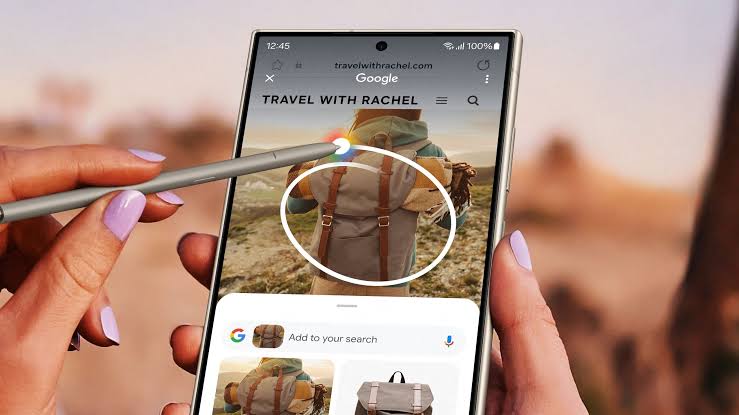
Circle to Search is a gesture-based search feature. It lets you circle, highlight, scribble, or tap anything on your screen. No need to switch apps or type out long queries .
Read Also: How to Transfer Android Files to Mac Without Android File Transfer App?
Want to identify a dog breed in a video? Circle it. Need to translate text in a photo? Highlight it. Curious about a product in an influencer's post? Tap it.
The feature uses Google's AI to understand what you are looking at and delivers relevant results instantly.
Which Android Phones Support Circle to Search?
Not every Android phone has this feature yet. Here is the current list of supported devices.
Samsung Galaxy: S21 series and newer, including S24, S25, and S26. Also works on foldables and select tablets running One UI 6.1 or higher .
Google Pixel: Pixel 6 and newer, including Pixel 8, Pixel 9, and Pixel 10 series .
Nothing Phones: Nothing Phone 2, 2a, 2a Plus, 3a, and 3a Pro .
Other brands: Reports suggest Xiaomi, Honor, and Motorola are getting support. But Google has not published an official list confirming this yet .
Important: Circle to Search is not available on OnePlus devices . OnePlus users can still use Google Lens for similar functionality.
The feature requires Android 14 or later and the latest version of the Google app .
How to Enable Circle to Search on Your Device?
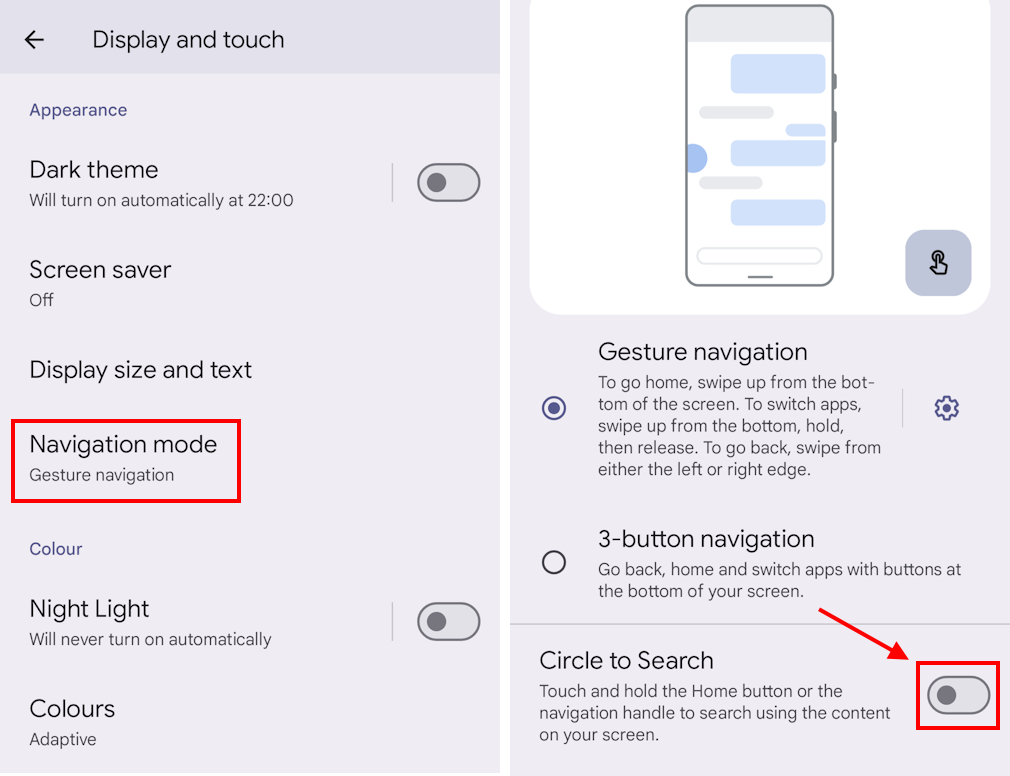
Circle to Search is enabled by default on supported phones. But if it is not working, here is how to check.
On Samsung Galaxy: Go to Settings > Display > Navigation bar. Toggle Circle to Search on .
On Google Pixel: Open Settings > System > Gestures. Look for "Circle to Search" or "Hold home to search" .
On other Android phones: Search for "Circle to Search" in Settings. Turn it on if available .
How to Use Circle to Search?
Once enabled, using the feature is simple.
Step 1: Open any app. It works with browsers, social media, YouTube, the camera, and even gallery apps .
You Must Also Like: How to Find Which Android Apps Have Background Camera Access?
Step 2: Long press the Home button. If you are using gesture navigation, long press the navigation handle at the bottom of your screen .
Step 3: You will see the Google search bar appear with a colorful animation . Now, do one of these:
-
Circle an object, item, or area on your screen
-
Highlight specific text
-
Scribble on a product or object
-
Tap directly on what interests you
The AI will process your selection and show results at the bottom of your screen. Swipe up to see more results .
What You Can Do with Circle to Search?
The latest updates have made this feature incredibly powerful.
Search Multiple Objects at Once
With Gemini 3 integration, you can now circle multiple items in the same image. For example, if you see a photo of a beautifully decorated room, circle the lamp, the rug, and the wall art all at once. Circle to Search will identify each item individually .
Ask Follow-Up Questions
After your initial search, you can ask follow-up questions. The new "Ask Anything" bar replaces the old search bar. It lets you have a conversation with AI about what you are looking at .
Example: Circle a math problem. Ask for a step-by-step explanation. Then ask a follow-up question about a similar problem. All within the same interface .
Get Gaming Help
Stuck in a game? Long press the home button. Circle the character or level you are struggling with. Get tips and strategies without leaving the game .
Shop Smarter
See an outfit you love on social media? Circle the dress, the shoes, and the accessories. Find the look button will show you where to buy each piece .
Translate Text
When text is detected, you can tap the Translate button for instant translation .
Copy Text
Highlight any text on your screen and tap Copy. It goes straight to your clipboard .
Advanced Tips for Better Results
Two-finger zoom. You can zoom in and pan across an image by pressing the screen with two fingers while Circle to Search is active .
Refine your search. After circling something, tap "Add to your search" in the Google search bar. Type a query like "find the best price" or "does it come in red?" .
Voice search. Tap the microphone icon in the search bar to speak your question instead of typing .
Dive deeper. Swipe to the bottom of your results. Tap "Dive Deeper in AI mode" to ask follow-up questions and get context-relevant results .
Troubleshooting: When Circle to Search Stops Working
I have run into issues before. Here is how I fixed them.
Feature Is Not Available
Your device may not be compatible. Check if your phone is on the supported list. If you are on a OnePlus device, Circle to Search is not supported .
Permission Error
Go to Settings > Apps > Choose default apps > Digital assistant app. Toggle "Analyze on-screen images" on .
Outdated Google App
Update the Google app from the Play Store . Features roll out through app updates.
Outdated Operating System
Make sure your device is running Android 14 or later .
App Restrictions
Circle to Search does not work in apps that prohibit screen capture for security reasons .
How to Turn It Off
If you want to disable Circle to Search, go to Settings > Display > Navigation bar (Samsung) or Settings > System > Gestures (Pixel). Toggle it off. On Samsung, you can also disable the "Analyze on-screen images" toggle under Digital assistant app settings .
What's New in 2026?
The latest update for Circle to Search is a game-changer. Here is what is new:
AI Mode integration. You can now ask follow-up questions and get AI-powered responses directly .
Gemini 3 upgrade. The feature can now identify multiple objects in a single search. It thinks through a multi-step plan to give you the best results .
Bottom chat UI. The text field has moved from the top of your screen to the bottom. It now feels more like a chat interface .
Quick Summary
| Feature | Details |
|---|---|
| What it does | Searches anything on your screen by circling, highlighting, or tapping |
| Supported phones | Samsung Galaxy (S21+), Google Pixel (6+), Nothing Phone (selected) |
| Requirements | Android 14+, latest Google app, internet connection |
| How to activate | Long press Home button or navigation handle |
| New in 2026 | AI Mode integration, Gemini 3, multiple object search |
| Troubleshooting | Check permissions, update Google app, enable in settings |
Circle to Search has become one of my favorite Android features. It saves time. It reduces app switching. It makes searching feel natural. If your phone supports it, try it today. You will be surprised how often you reach for it.